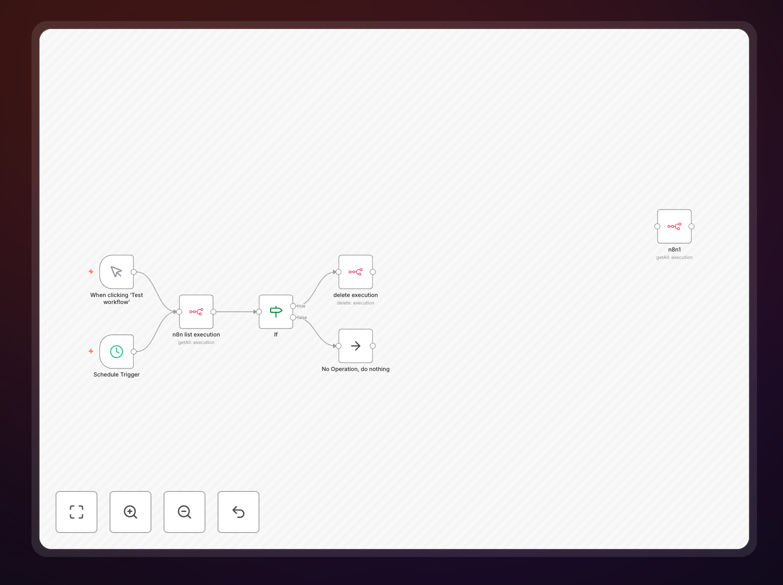
What This Workflow Does
As you run more automations in n8n, your execution history grows rapidly. Each successful run, failed attempt, and manual trigger creates a log entry that accumulates in your database. Over time, this can consume significant storage, slow down your instance, and make it harder to find recent, relevant executions when debugging.
This workflow solves that problem automatically. It periodically scans your n8n execution history and deletes entries older than your specified retention period (default: 10 days). Think of it as a digital janitor for your automation platform—working silently in the background to keep everything tidy and performant.
Instead of manually cleaning up through the UI or running database queries, this automation handles everything on a schedule. You maintain control over how much history to keep while ensuring your instance doesn't get bogged down by outdated data.
How It Works
The workflow uses a simple but effective three-step process to identify and remove old executions while preserving recent data.
1. Scheduled Trigger & Execution Retrieval
A Schedule Trigger node runs the workflow daily at your configured time (default: 4:44 AM). When triggered, the workflow uses n8n's native "List Executions" node to fetch all execution records from your instance. This includes both successful and failed executions across all workflows.
2. Age Evaluation & Filtering
An If node evaluates each execution's start date against your configured retention period. The default condition checks if an execution is older than 10 days (10 * 24 * 60 * 60 * 1000 milliseconds). You can easily adjust this threshold to match your compliance requirements or storage constraints.
3. Selective Deletion
Executions that meet the age criteria are passed to the "Delete Execution" node, which permanently removes them from your n8n database. Executions that don't meet the criteria (recent ones) flow to a "No Operation" node, meaning they're preserved. The workflow also includes a Manual Trigger for on-demand testing before committing to automated cleanup.
Pro tip: Start with a conservative retention period (like 30 days) and monitor the results. Once confident, you can shorten the period to optimize storage further.
Who This Is For
This template is essential for any team or individual running n8n in production. It's particularly valuable for:
DevOps teams managing self-hosted n8n instances who need to control database growth and maintain system performance. Business automation managers overseeing dozens of workflows that generate significant execution data daily. Agencies and consultants who manage n8n for multiple clients and need standardized maintenance procedures. Startups and scaling companies whose automation volume is increasing and who want to prevent performance degradation.
If you've noticed your n8n instance slowing down or your database growing unexpectedly large, this workflow provides an immediate solution.
What You'll Need
- A running n8n instance (Cloud or self-hosted)
- Administrator access or API credentials with execution read/delete permissions
- Basic understanding of n8n workflow import/export
- Knowledge of your compliance requirements for data retention
Quick Setup Guide
Getting started takes just a few minutes. Follow these steps to implement automated execution pruning in your n8n instance.
- Download the template using the button above and save the JSON file to your computer.
- Import into n8n by creating a new workflow and using the "Import from File" option in your n8n editor.
- Configure the retention period by editing the If node's condition. Adjust the milliseconds value to match your desired days.
- Test with Manual Trigger first to ensure the workflow identifies and processes executions correctly.
- Activate the Schedule Trigger once testing is complete, setting your preferred daily run time.
- Monitor initial runs to verify the correct number of executions are being pruned.
Important: Always test with the Manual Trigger first and review which executions would be deleted before enabling the schedule. Consider backing up important execution data if you have compliance requirements.
Key Benefits
Reduced database storage costs by automatically removing outdated execution logs that serve no operational purpose. For high-volume users, this can save gigabytes of storage monthly.
Improved n8n instance performance as smaller databases query faster. Execution lists load more quickly, and overall system responsiveness increases.
Simplified debugging and monitoring with less clutter in your execution history. When issues occur, you can focus on recent executions rather than sifting through months of old data.
Compliance-ready data retention with configurable policies that you can adjust based on regulatory requirements or internal policies.
Zero ongoing maintenance once configured. The workflow runs autonomously, handling cleanup without manual intervention or scheduled tasks on your calendar.