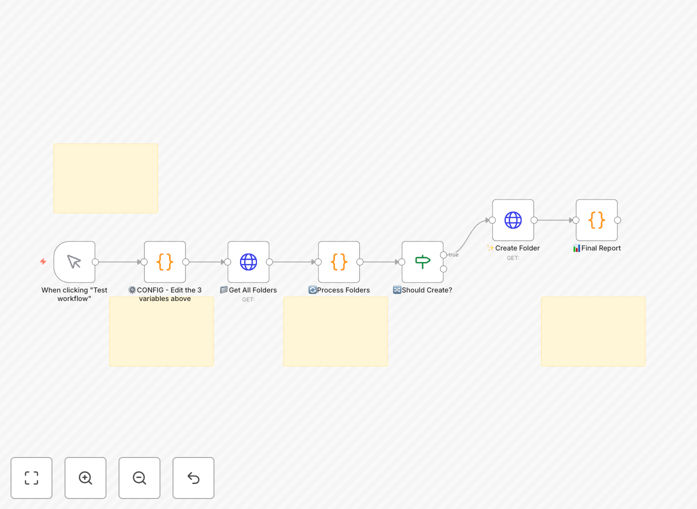
What This Workflow Does
Manually recreating complex folder structures in Google Drive for every new project is a time-consuming, error-prone administrative task. This automation solves that problem by instantly cloning any nested folder hierarchy with custom naming conventions.
The workflow reads your source folder structure—whether it's a client project template, departmental framework, or standardized process—and creates an identical copy in your destination location. It preserves all folder relationships and nesting levels while allowing you to customize folder names based on project specifics, dates, or client information.
This is particularly valuable for agencies managing multiple client projects, consultants delivering standardized deliverables, teams onboarding new members with consistent workspace setups, or any business that needs to maintain organizational consistency across numerous initiatives.
How It Works
The automation follows a systematic approach to ensure accurate folder replication while maintaining flexibility for different use cases.
Step 1: Configuration Setup
You provide three key pieces of information: the source folder ID (the template structure to copy), the destination folder ID (where the new structure should be created), and your custom naming pattern. The workflow uses Google Drive API credentials that you configure once in n8n.
Step 2: Structure Analysis
The automation scans the source folder to identify all nested folders and their hierarchical relationships. It creates a map of the entire structure, noting parent-child relationships and folder names at each level.
Step 3: Intelligent Creation
Starting from the top level, the workflow creates folders in the destination, applying your custom naming conventions. It intelligently skips folders that already exist to prevent duplicates and handles errors gracefully with detailed logging.
Step 4: Level-by-Level Processing
For deeply nested structures, the automation processes one level at a time. You can run it multiple times to complete complex hierarchies, with each execution picking up where the previous one left off.
Who This Is For
This template delivers immediate value to several business scenarios:
Marketing & Creative Agencies: Quickly set up identical folder structures for each new client project, ensuring consistent organization across your team and making it easy for clients to find deliverables.
Consultants & Freelancers: Maintain standardized folder templates for different service offerings, with automatic setup for each new engagement that reflects your professional methodology.
Project Managers: Eliminate manual folder creation when launching new initiatives, ensuring every project follows the same organizational standards from day one.
HR & Onboarding Teams: Automatically create personalized workspace structures for new hires with all necessary department folders, training materials, and documentation locations pre-organized.
Educational Institutions: Set up consistent course folders for each new semester or student cohort, with standardized sections for syllabi, assignments, resources, and submissions.
What You'll Need
- Google Drive Account with API access enabled (standard Google Workspace or personal account)
- n8n Instance (cloud or self-hosted) with Google Drive node credentials configured
- Source Folder with the template structure you want to replicate (read permissions required)
- Destination Location where new folders will be created (write permissions required)
- Custom Naming Pattern decided in advance (e.g., "ClientName-ProjectType-YYYYMMDD")
Pro tip: Create a dedicated "Templates" folder in your Google Drive specifically for your reusable structures. Organize templates by project type, client category, or department for easy management.
Quick Setup Guide
Getting started with this automation takes less than 10 minutes:
- Download the template using the button above and import it into your n8n instance.
- Configure Google Drive credentials in n8n if you haven't already (one-time setup).
- Locate your folder IDs from Google Drive URLs—the long string after "/folders/".
- Edit the CONFIG node with your source folder ID, destination folder ID, and naming pattern.
- Test with a simple structure first to verify everything works correctly.
- Run the workflow and check the execution log to see exactly what was created.
Pro tip: For complex nested structures, run the workflow multiple times—each execution processes the next level down. Check the final report in the workflow execution to see what was created, skipped, or failed.
Key Benefits
Save 2-3 hours monthly per team member on manual folder setup and organization. What was previously a tedious administrative task becomes an instant, error-free process.
Ensure 100% consistency across all projects and clients. Every new initiative starts with exactly the same organized structure, improving collaboration and reducing confusion.
Eliminate human error in folder creation. No more missing folders, incorrect naming, or broken hierarchical relationships that plague manual setups.
Scale your operations without proportional administrative overhead. Adding new projects or clients doesn't mean more manual setup work for your team.
Improve document management from project inception. Well-organized folders from day one make it easier to find files, collaborate effectively, and maintain version control.