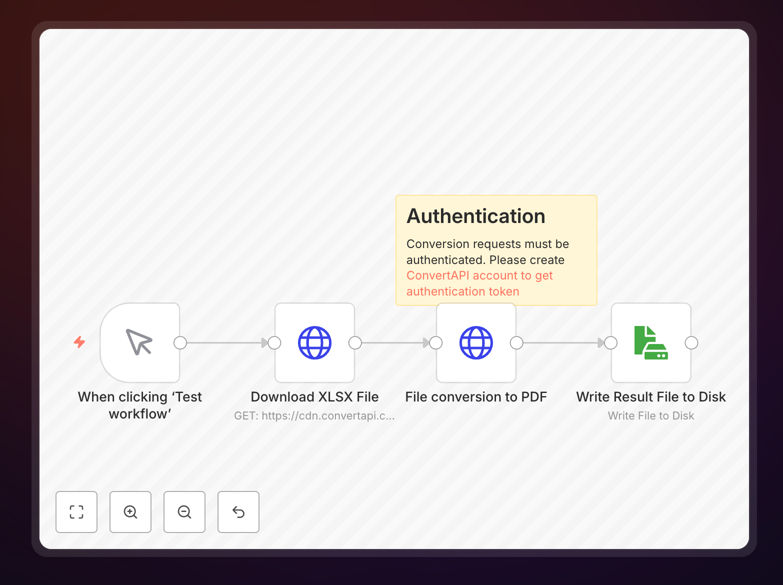
What This Workflow Does
This automation solves a common yet time-consuming business problem: converting Excel spreadsheets (XLSX) into portable, shareable PDF documents. Manual conversion is error-prone and doesn't scale. This workflow automates the entire process end‑to‑end.
It downloads an XLSX file from a specified web URL, sends it to the ConvertAPI service for high‑fidelity conversion, and saves the resulting PDF to your local file system or cloud storage. You eliminate repetitive clicks, ensure consistent output quality, and free up hours each week for more strategic work.
Whether you're generating client reports, processing financial statements, or archiving data exports, this workflow turns a multi‑step manual task into a reliable, hands‑off operation.
How It Works
The workflow follows a clear, linear sequence to guarantee successful conversion every time.
Step 1: Trigger & File Retrieval
The process begins with a manual trigger or can be scheduled. An HTTP Request node fetches the XLSX file from a provided URL. This could be a link to a file in Google Drive, Dropbox, an internal server, or any web‑accessible location.
Step 2: Conversion via ConvertAPI
The retrieved file is passed to ConvertAPI via another HTTP Request node configured as a POST call. Your ConvertAPI secret key is used for authentication in the request headers. The service processes the file, preserving formulas, formatting, and layout.
Step 3: Output Handling & Storage
ConvertAPI returns the converted PDF file. The workflow captures this binary data and uses a Write File node (or similar) to save it to a designated folder on your server, network drive, or connected cloud storage like S3 or Google Cloud Storage.
Pro tip: Add a step after saving the PDF to notify your team via Slack or email, creating a complete, closed‑loop automation.
Who This Is For
This template is ideal for finance teams, operations managers, developers, and any professional who regularly deals with Excel‑based reporting.
Finance & Accounting: Automate the conversion of monthly financial reports, invoices, or budget spreadsheets before distribution.
Sales & Operations: Convert sales forecasts, inventory lists, or project plans into PDFs for client presentations or archival.
Developers & IT: Integrate file conversion into larger application workflows, such as generating user‑facing documents from backend data.
Administrative Staff: Eliminate the manual task of printing Excel sheets to PDF, reducing workload and potential for human error.
What You'll Need
- A running n8n instance (cloud or self‑hosted).
- A ConvertAPI account and an active API secret key.
- Access to the source XLSX file via a public URL or an accessible file path.
- Write permissions to a destination folder on your server or connected cloud storage.
- Basic understanding of how to import a JSON workflow and configure node credentials in n8n.
Quick Setup Guide
Get this automation running in your environment in under 10 minutes.
- Download the template using the button above and import it into your n8n instance.
- Obtain your ConvertAPI secret from your account dashboard and add it as a credential in the HTTP Request node.
- Configure the first HTTP Request node with the URL of your source XLSX file.
- Update the file path in the Write File node to point to your desired save location.
- Test the workflow by clicking "Execute Workflow". Check the destination folder for your new PDF.
- Add triggers like a Schedule trigger for daily conversions or a Webhook for on‑demand processing.
Pro tip: Use n8n's "Read/Write Files from Disk" node for more advanced local file operations, or connect to Google Drive/Dropbox nodes for cloud‑based workflows.
Key Benefits
Save 15–30 minutes per conversion. What was a manual, multi‑step process becomes a background task completed in seconds.
Eliminate formatting errors. Automated conversion produces identical, professional PDFs every time, removing variability from manual "Save As" or printing.
Scale effortlessly. Process hundreds of files in a batch by looping through a list of URLs—impossible to do manually without errors.
Improve data security. Keep sensitive spreadsheets within your automated systems instead of emailing them around or saving to insecure locations.
Create reliable audit trails. The workflow logs each conversion, providing a record of when files were processed and where they were saved.