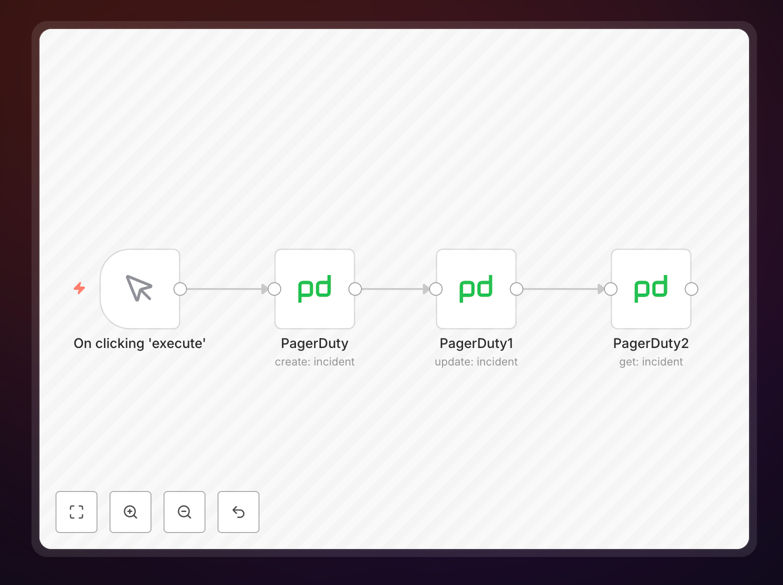
What This Workflow Does
This n8n workflow automates the entire lifecycle of a PagerDuty incident. Instead of manually creating tickets when an alert fires, this template listens for triggers from your monitoring tools (like Datadog, Sentry, or custom scripts) and automatically creates a corresponding incident in PagerDuty with all the necessary context.
It also handles updates—when the underlying issue is being worked on or resolved, the workflow can modify the incident status, add notes, or change priority. Finally, it can fetch incident details for reporting or to sync with other systems like Slack or Jira. This end‑to‑end automation ensures your on‑call team is notified instantly with rich context, reducing mean time to acknowledge (MTTA) and resolution (MTTR).
By connecting PagerDuty with the rest of your toolchain, you eliminate manual copy‑pasting, reduce human error, and keep everyone in the loop automatically. It’s especially valuable for DevOps, SRE, and IT teams that manage frequent alerts and need a consistent, auditable incident response process.
How It Works
The workflow is built as a modular n8n canvas that you can trigger via webhook, schedule, or from another app. Here’s the step‑by‑step logic:
1. Trigger & Ingest Alert Data
The workflow starts with a webhook, schedule, or app trigger (e.g., from a monitoring tool). It receives the alert payload—error message, severity, service name, timestamp—and parses it into a structured format.
2. Create PagerDuty Incident
Using the PagerDuty node, the workflow creates a new incident with the parsed details. It sets the title, description, urgency, and assigns it to the correct service and escalation policy based on the alert source.
3. Enrich with Additional Context
Optionally, the workflow can fetch extra data—like recent deployment logs, affected user count, or related dashboard links—and append it to the incident as notes. This gives responders everything they need in one place.
4. Update Incident Status
As the situation evolves, the workflow can update the incident. For example, when a remediation script runs, it can change the status to “acknowledged” or “resolved” and add a resolution note automatically.
5. Fetch & Sync Incident Details
The “Get Incident” step retrieves the current incident data from PagerDuty. This can be used to post updates to Slack, create a post‑mortem ticket in Jira, or log metrics for monthly reports.
6. Notify Stakeholders
Finally, the workflow can send tailored notifications to different channels—Slack for engineers, email for managers, SMS for critical outages—based on the incident severity and stage.
Pro tip: Use the “Merge” node to combine data from multiple alert sources before creating the incident. This prevents duplicate tickets for the same underlying issue.
Who This Is For
This template is designed for teams that rely on PagerDuty for incident response and want to reduce manual toil. Ideal users include:
- DevOps & SRE teams managing cloud infrastructure and application alerts.
- IT Operations handling server, network, or security monitoring.
- Software engineering teams that want to automate error tracking (Sentry, Rollbar) into PagerDuty.
- Tech startups with limited on‑call staff who need to maximize response efficiency.
- Managed service providers that handle incidents for multiple clients and need consistent processes.
If your team spends more than 15 minutes per week manually creating or updating PagerDuty incidents, this automation will pay for itself in reduced friction and faster resolution.
What You'll Need
- A PagerDuty account with admin or API access.
- Your PagerDuty API key (generate from your account settings).
- A running n8n instance (cloud or self‑hosted).
- A monitoring tool that can send webhooks (Datadog, New Relic, Prometheus Alertmanager, etc.) or a custom script that triggers alerts.
- Optional: Slack, Microsoft Teams, or email credentials if you want to add notification steps.
Quick Setup Guide
Follow these steps to import and configure the workflow in your n8n environment:
- Download the template using the button above. You’ll get a JSON file.
- In your n8n dashboard, go to Workflows → Import from file and select the downloaded JSON.
- Configure the PagerDuty node: Add your PagerDuty API key and select the correct service ID.
- Set up the trigger: Replace the sample webhook with your actual alert source (e.g., configure a Datadog webhook integration).
- Map your alert fields: Adjust the “Set” nodes to match the data structure your monitoring tool sends.
- Test with a dummy alert: Activate the workflow and send a test payload to ensure the incident is created correctly in PagerDuty.
- Go live: Once tested, connect it to your production monitoring system and enable the workflow.
The entire setup should take under 30 minutes. The template is pre‑wired with the most common fields, so you only need to adjust the mapping to your specific alert format.
Pro tip: Use n8n’s “Test Workflow” feature to simulate alerts before connecting real systems. This lets you verify the incident details without triggering actual pages.
Key Benefits
Cut incident creation time from minutes to seconds. No more switching tabs, copying error logs, or filling out forms manually. The workflow does it instantly with full context.
Reduce human error and missed alerts. Automated incident creation ensures every alert is logged, prioritized, and assigned correctly, following your predefined rules every single time.
Improve on‑call team morale. By eliminating repetitive administrative tasks, engineers can focus on solving problems instead of managing tickets. This reduces alert fatigue and burnout.
Gain better visibility and reporting. Since every incident is created and updated programmatically, you get clean, consistent data for post‑mortems, SLA reports, and process improvement.
Scale your incident response without adding headcount. As your systems grow, the same automation handles hundreds of alerts daily without extra manual effort, letting your team scale efficiently.