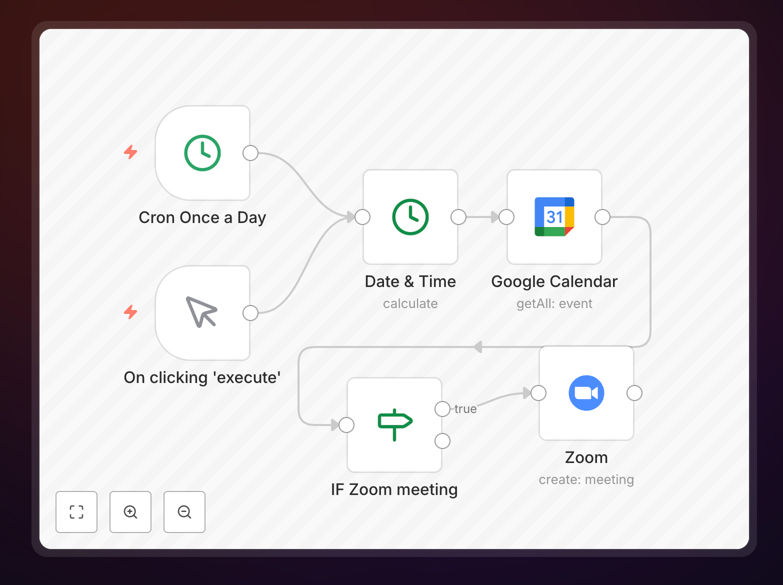
What This Workflow Does
If you schedule multiple virtual meetings daily, you know the drill: create a calendar event, open Zoom, generate a meeting, copy the link, paste it back into the calendar, and send updates. This repetitive process wastes valuable time and introduces room for error—like forgetting to add the link entirely.
This n8n workflow automates the entire process. It connects directly to your Google Calendar, scans upcoming events (typically for the next 12 hours), intelligently filters out meetings that don't need a Zoom link (like in-person or canceled events), and automatically creates a corresponding Zoom meeting. The Zoom join link, dial-in details, and password are then seamlessly added back to the original calendar event, ensuring all attendees have the correct information from the start.
The result is a fully hands-off system that guarantees every virtual meeting on your calendar is ready to go, saving you 2–5 minutes of manual work per meeting and eliminating the last-minute scramble for links.
How It Works
The workflow follows a logical, step-by-step process to ensure accuracy and reliability.
1. Trigger & Calendar Fetch
The workflow is triggered on a schedule (e.g., every hour). It connects to the Google Calendar API and fetches all events starting within a defined window, usually the next 12 hours. This ensures it catches all upcoming meetings in time to prepare them.
2. Intelligent Filtering
Not every calendar event needs a Zoom link. The workflow applies smart filters to exclude in-person meetings, events already containing video links (like Google Meet or Signal), and meetings canceled by scheduling tools (marked as "transparent"). This prevents unnecessary API calls and keeps your calendar clean.
3. Zoom Meeting Creation
For each qualifying event, the workflow calls the Zoom API to create a new meeting. It uses the calendar event's title, start/end times, and description to configure the Zoom meeting settings, including optional security features like passwords and waiting rooms.
4. Calendar Update
Once the Zoom meeting is created, the workflow extracts the join URL, meeting ID, and password. It then updates the original Google Calendar event by appending this information to the description or adding a new conference data entry, making it instantly available to all invited guests.
5. Error Handling & Logging
The workflow includes error-handling logic. If a Zoom meeting fails to create or the calendar fails to update, the error is logged, and the workflow can be configured to send an alert (e.g., via Slack or email) so you can intervene manually.
Who This Is For
This automation is ideal for any professional or team that relies heavily on scheduled virtual meetings.
Consultants & Coaches: Manage back-to-back client sessions without manual link creation between calls.
Remote & Hybrid Teams: Ensure every internal sync, stand-up, or project review has a ready-to-use meeting room.
Sales & Account Managers: Automate link generation for prospect demos and client check-ins scheduled via Calendly or other tools.
Educators & Trainers: Automatically prepare virtual classrooms for scheduled lectures or workshops.
Executives & Assistants: Delegate the technical meeting setup so focus remains on the meeting content, not the logistics.
What You'll Need
- An n8n instance (self-hosted or n8n.cloud account).
- A Google Workspace account with Calendar API enabled. You'll need to create OAuth credentials in the Google Cloud Console.
- A Zoom account with admin access to create a JWT or OAuth app in the Zoom App Marketplace to obtain API credentials.
- Basic understanding of how to import a JSON workflow into n8n and configure node credentials.
Pro tip: Use Zoom OAuth over JWT tokens for better security and to avoid token expiration issues. The n8n Zoom node supports both methods.
Quick Setup Guide
Follow these steps to get this automation running in your n8n environment.
- Download the Template: Click the "Download Template" button on this page to get the JSON file.
- Import into n8n: In your n8n interface, go to Workflows > Import from File and select the downloaded JSON.
- Configure Credentials: Set up the Google Calendar and Zoom node credentials in n8n using your API keys or OAuth flows.
- Adjust the Schedule: Modify the Schedule Trigger node to run at a frequency that suits your meeting volume (e.g., every 30 minutes).
- Test with a Dummy Event: Create a test event in your Google Calendar, activate the workflow, and verify a Zoom link is generated and added correctly.
- Activate & Monitor: Turn the workflow on and monitor the executions for the first day to ensure it's working as expected.
Key Benefits
Save 5+ Hours Per Month: Eliminate 2-5 minutes of manual work for every virtual meeting. For someone with 5 meetings a day, that's over an hour saved each week.
Eliminate Human Error: Never forget to add a meeting link again. The automation guarantees every qualifying event is updated, providing a professional, consistent experience for all attendees.
Improve Meeting Security: Automatically apply Zoom's security settings (passwords, waiting rooms) via the API, ensuring your meetings are protected by default without extra thought.
Seamless Integration: Works silently in the background. Attendees simply see the correct Zoom link in their calendar invite—no extra steps or confusion.
Scalable Foundation: This workflow is a starting point. It can be extended to add meeting reminders in Slack, log details to a spreadsheet, or sync with a CRM for sales meetings.