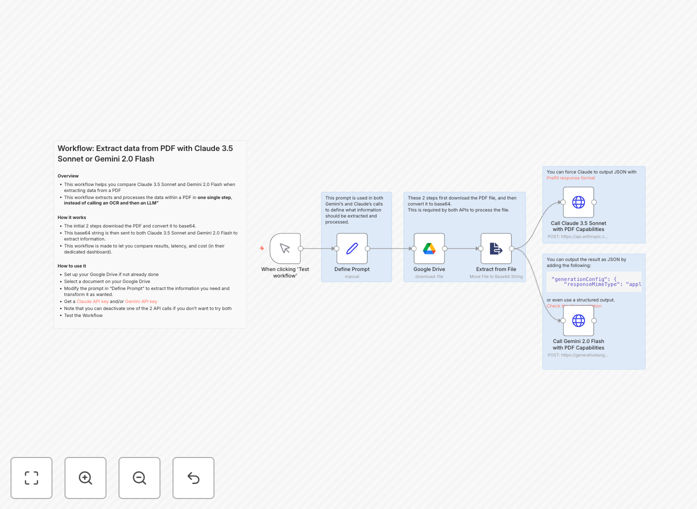
What This Workflow Does
Manually extracting data from PDFs—invoices, contracts, reports, forms—is time-consuming and error-prone. Traditional methods often require separate OCR software followed by manual data entry or basic parsing. This workflow eliminates that complexity by using advanced AI models to understand, extract, and process information directly from PDF documents in a single automated step.
Specifically designed for comparison, this template runs the same PDF through both Claude 3.5 Sonnet and Gemini 2.0 Flash simultaneously. You get side-by-side results showing which model performs better for your specific documents in terms of accuracy, speed, and cost-effectiveness. It converts PDFs to base64 format that AI models can process directly, bypassing the need for intermediate OCR steps.
The workflow extracts structured data based on your custom prompts—whether you need invoice details, contract clauses, research findings, or form submissions. It then formats this information for your databases, spreadsheets, or business applications, creating a complete automated pipeline from document ingestion to data utilization.
How It Works
Step 1: Document Selection & Preparation
The workflow begins by connecting to Google Drive (or your chosen storage) to select target PDFs. It automatically converts these documents into base64 format, creating a standardized input that both Claude and Gemini can process directly. This eliminates the traditional OCR step that adds complexity and potential errors.
Step 2: Dual AI Processing
Your base64 PDF content is sent simultaneously to both Claude 3.5 Sonnet and Gemini 2.0 Flash APIs. Each model processes the document according to your custom extraction prompt, which you can tailor to target specific data points like dates, amounts, names, or clauses. The workflow runs these processes in parallel for efficiency.
Step 3: Results Comparison & Output
Both AI models return their extracted data in structured formats. The workflow presents these results side-by-side, allowing you to compare accuracy, completeness, and formatting. You can then choose which output to use, send both for human review, or implement logic to select the best result automatically based on confidence scores.
Step 4: Data Integration
Once extracted, the structured data flows into your downstream systems—whether that's Google Sheets for analysis, your CRM for customer information, accounting software for invoice processing, or databases for record-keeping. The workflow transforms raw PDF content into actionable business intelligence.
Pro tip: Start with simple extraction tasks like invoice amounts and dates before moving to complex document analysis. Both AI models perform better when prompts are specific about what data to extract and how to format it.
Who This Is For
This workflow serves businesses drowning in document processing: finance teams handling invoices and receipts, legal departments reviewing contracts, HR screening resumes, researchers analyzing papers, and operations teams processing forms. If you spend more than 5 hours weekly manually extracting data from PDFs, this automation will transform your workflow.
It's particularly valuable for companies comparing AI solutions before committing to one model. The side-by-side comparison helps you make data-driven decisions about which AI service delivers better results for your specific document types and use cases. Tech-savvy teams in accounting, legal, consulting, education, and healthcare will find immediate value.
What You'll Need
- n8n instance (cloud or self-hosted)
- Google Drive access for document storage (or alternative cloud storage)
- Anthropic API key for Claude 3.5 Sonnet access
- Google AI Studio API key for Gemini 2.0 Flash access
- Sample PDF documents to test the extraction process
- Destination system for processed data (database, spreadsheet, CRM, etc.)
Quick Setup Guide
Follow these steps to implement this PDF extraction workflow in under 30 minutes:
- Import the template: Download the JSON file and import it into your n8n instance.
- Configure Google Drive: Set up credentials to access your PDF storage location.
- Add API keys: Enter your Anthropic and Google AI Studio credentials in the respective nodes.
- Customize your prompt: Modify the "Define Prompt" node to specify exactly what data to extract from your PDFs.
- Test with sample documents: Run the workflow with a few PDFs to verify extraction accuracy.
- Connect outputs: Route the extracted data to your preferred destination (database, spreadsheet, etc.).
- Schedule automation: Set the workflow to trigger automatically when new PDFs arrive in your Drive folder.
Pro tip: You can disable either Claude or Gemini node if you only want to use one AI model. This reduces API costs and simplifies the workflow while maintaining core functionality.
Key Benefits
Eliminate manual data entry: Reduce PDF processing time from hours to seconds. What previously required human reading and typing now happens automatically with AI understanding.
Compare AI performance objectively: See side-by-side which model—Claude or Gemini—works better for your specific documents and extraction needs before committing resources.
Process unstructured documents: Handle invoices, contracts, reports, and forms that don't follow strict templates, thanks to AI's contextual understanding.
Reduce errors and improve consistency: AI extraction follows the same rules every time, eliminating human oversight mistakes and ensuring standardized data formatting.
Scale without additional staffing: Process hundreds of documents daily with the same infrastructure that handles ten, enabling growth without proportional cost increases.