File Management Data Processing n8n Automation Excel

Get CSV from URL and Convert to Excel

Automatically download CSV files from any URL and convert them to Excel format for better analysis and reporting.

Download Template JSON · n8n compatible · Free
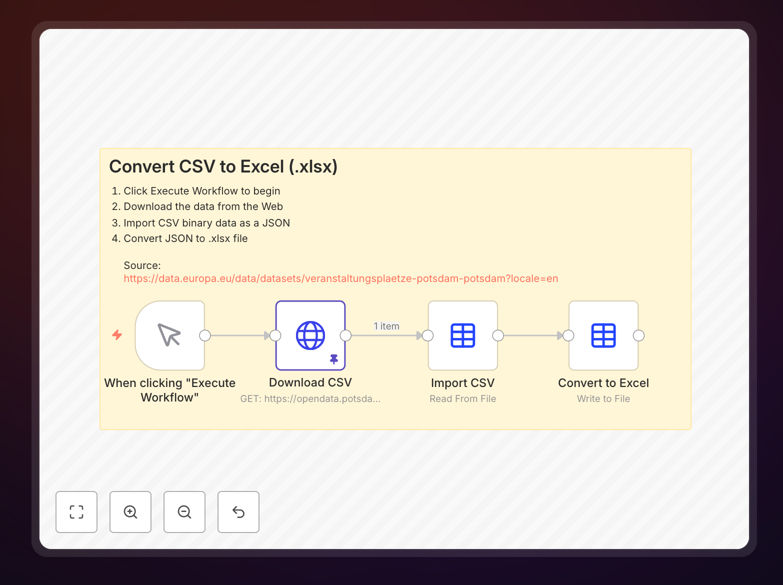
CSV to Excel conversion workflow automation diagram showing data flow from URL to Excel file

What This Workflow Does

This automation solves a common business problem: manually downloading CSV files from various sources and converting them to Excel format for analysis, reporting, or sharing with team members. Many business systems export data as CSV files, but Excel's formatting, formulas, and visualization capabilities make it the preferred format for most business users.

The workflow automatically fetches CSV files from specified URLs (like data exports from CRMs, e-commerce platforms, or financial systems), processes the data, and converts it into properly formatted Excel files. This eliminates hours of manual work each week and ensures consistency in how data is presented across your organization.

Beyond simple conversion, this template demonstrates how to handle different data sources, manage file formats, and automate what would otherwise be a repetitive, error-prone manual task. It's particularly valuable for businesses that regularly receive data exports from multiple systems that need to be standardized into a single reporting format.

How It Works

The workflow follows a logical sequence to transform raw CSV data into polished Excel files without manual intervention.

Step 1: Fetch CSV from URL

The workflow starts by connecting to a specified URL where the CSV file is hosted. This could be a direct download link from a business system, a shared cloud storage location, or an API endpoint that returns CSV data. The HTTP Request node handles the connection and downloads the file securely.

Step 2: Process CSV Data

Once downloaded, the CSV data is parsed and prepared for conversion. This stage can include data cleaning operations like removing unnecessary columns, filtering specific rows based on criteria, or reformatting data types (dates, currencies, numbers) to ensure consistency in the final Excel file.

Step 3: Convert to Excel Format

The core conversion happens here. The Spreadsheet File node (or Convert to File node in newer n8n versions) transforms the processed CSV data into Excel format. You can configure output options like sheet names, column widths, and basic formatting to make the Excel files immediately usable for your team.

Step 4: Deliver or Store Results

The final Excel file can be saved to cloud storage (Google Drive, Dropbox), sent via email to stakeholders, uploaded to a shared company drive, or forwarded to another system for further processing. This completes the automation cycle from raw data to actionable business intelligence.

Who This Is For

This automation is ideal for finance teams that receive daily transaction exports from banking systems, marketing departments that download campaign analytics from various platforms, e-commerce businesses that export order data from their stores, and operations teams that work with inventory or logistics data exports.

Small business owners who manually convert sales data from their e-commerce platform to Excel for tax reporting will save significant time. Data analysts who spend hours each week reformatting CSV exports from multiple sources will appreciate the consistency and reliability of automated conversion. Even non-technical team members can benefit from having fresh Excel reports automatically delivered to their inbox or shared drive.

Pro tip: Combine this workflow with scheduling to automatically process CSV files at specific times (like end of day or week). This ensures your Excel reports are always up-to-date without manual triggering.

What You'll Need

  1. n8n instance – Either self-hosted or n8n.cloud account
  2. Source URL – A reliable URL pointing to your CSV file (with authentication if required)
  3. Destination setup – Configured connections to where Excel files should be saved (Google Drive, email, etc.)
  4. Basic data mapping – Understanding of which CSV columns need to be included in your Excel output
  5. Testing environment – Sample CSV files to test the workflow before production use

Quick Setup Guide

Follow these steps to implement this automation in your business:

  1. Download and import the template JSON file into your n8n instance using the Import Workflow function.
  2. Configure the HTTP Request node with the URL of your CSV file source. Add any required authentication headers or parameters.
  3. Adjust data processing nodes to match your CSV structure. Map columns, set data types, and apply any necessary filters or transformations.
  4. Set up the Excel output by configuring the Spreadsheet File node with your preferred sheet name, column formatting, and file naming convention.
  5. Connect delivery channels by adding nodes to save files to cloud storage, send via email, or upload to other systems.
  6. Test thoroughly with sample data to ensure the conversion works correctly before activating the workflow on a schedule.
  7. Activate and monitor the workflow, setting it to run on your preferred schedule (daily, weekly, or triggered by events).

Key Benefits

Save 5-10 hours per week by eliminating manual CSV downloads and Excel conversions. What typically takes 15-30 minutes per file becomes fully automated, freeing your team for higher-value analysis work.

Eliminate formatting errors that occur when manually copying data between applications. Automated conversion ensures consistent column widths, date formats, number formatting, and data validation across all your reports.

Improve data timeliness with scheduled automation that processes files immediately when they become available. No more waiting for someone to manually download and convert the latest data exports.

Standardize reporting across departments by applying the same conversion rules to all CSV sources. This creates uniform Excel templates that make cross-departmental analysis and executive reporting more efficient.

Scale effortlessly as your data sources grow. Adding new CSV URLs or modifying conversion rules requires minimal configuration compared to training staff on new manual processes.

Frequently Asked Questions

Common questions about CSV to Excel automation and integration

CSV files are plain text with comma-separated values, making them lightweight and universally readable but lacking formatting and multiple sheets. Excel files support formulas, charts, multiple worksheets, and cell formatting, making them better for analysis and presentation.

CSV is ideal for data exchange between systems because nearly every platform can generate and read CSV format. Excel is better for reporting and analysis where visual presentation, calculations, and data organization matter. Most business users prefer Excel for working with data, while systems prefer CSV for data export/import.

  • CSV: Simple structure, small file size, no formatting
  • Excel: Rich features, larger files, presentation-ready
  • Automation bridges the gap between system exports and user needs

Businesses automate CSV to Excel conversion to save time on manual data processing, reduce human errors in data formatting, and ensure consistent reporting. Manual conversion is repetitive work that doesn't add strategic value but consumes significant employee time.

This is especially valuable for financial reports, sales data from CRMs, inventory exports from e-commerce platforms, and marketing analytics that need to be presented in a standardized Excel format for stakeholders. Automation ensures reports are always formatted correctly and delivered on time without manual intervention.

  • Eliminates 15-30 minutes of manual work per file
  • Reduces formatting inconsistencies across reports
  • Ensures timely availability of converted data

Yes, automation tools like n8n can connect to cloud storage services to fetch CSV files and convert them to Excel format automatically. You can set up workflows that monitor specific folders for new CSV files, process them on a schedule, and save the converted Excel files to designated locations.

For example, you could have a workflow that checks a Google Drive folder every morning for new sales CSV exports, converts them to formatted Excel reports with calculated totals and charts, then saves them to a shared team folder and emails notifications to department heads. This creates a complete hands-off reporting pipeline.

  • Connect to Google Drive, Dropbox, OneDrive, etc.
  • Monitor folders for new CSV files automatically
  • Deliver converted Excel files to multiple destinations

During conversion, you can clean data by removing duplicates, filtering specific rows or columns, reformatting dates and numbers, adding calculated columns, merging data from multiple CSV files, and applying conditional formatting. This transforms raw data exports into presentation-ready Excel reports.

Common transformations include converting date formats to your regional standard, adding currency symbols to monetary values, calculating totals and percentages, applying color coding based on values, and removing test or incomplete data rows. These transformations save additional manual editing time after conversion.

  • Data cleaning: remove duplicates, filter rows
  • Formatting: dates, currencies, conditional formatting
  • Calculations: totals, averages, percentages

When properly configured, automated file conversion can be more secure than manual handling. Self-hosted automation platforms keep data within your infrastructure, while cloud solutions use encryption for data in transit and at rest. You control access permissions and can implement audit trails.

Best practices include using secure connections (HTTPS) for file downloads, encrypting sensitive data fields, implementing access controls so only authorized workflows process certain data, and logging all conversion activities for compliance purposes. Automation reduces the risk of human error exposing sensitive data.

  • Data stays within controlled environments
  • Encryption for data in transit and at rest
  • Access controls and audit logging available

Common use cases include: converting daily sales exports from e-commerce platforms to formatted sales reports, transforming bank statement CSV files into accounting Excel sheets, processing survey data from tools like Typeform into analysis-ready spreadsheets, and converting inventory exports into stock management files.

Marketing teams use this for converting campaign analytics from platforms like Facebook Ads or Google Analytics into Excel reports for performance review. HR departments automate the conversion of time tracking exports into payroll-ready Excel files. The pattern applies wherever systems export CSV data that humans need to analyze in Excel.

  • Sales: E-commerce exports to sales reports
  • Finance: Bank statements to accounting sheets
  • Marketing: Analytics data to performance reports

Yes, automation platforms allow you to schedule workflows that download CSV files from specified URLs at regular intervals (daily, weekly, monthly), convert them to Excel format, and perform additional processing like data validation, calculations, and distribution via email or cloud storage.

You can set up schedules that match your business cycles - daily for sales reports, weekly for inventory updates, monthly for financial closing. Some platforms also support event-based triggering, like starting the conversion when a new file appears in a monitored folder or when an email with attachment arrives.

  • Schedule: Daily, weekly, monthly, or custom intervals
  • Trigger: Time-based or event-based (new file, email)
  • Combine with data processing and distribution steps

Yes, GrowwStacks specializes in building custom automation solutions for CSV to Excel conversion tailored to your specific business needs. We can create workflows that integrate with your existing systems, handle complex data transformations, implement error handling, and deliver converted files to your preferred destinations.

Our team works with you to understand your data sources, required transformations, output formats, and delivery methods. We build robust automation that handles edge cases, includes proper logging and monitoring, and can scale as your business grows. Custom solutions ensure the automation fits perfectly into your existing processes.

  • Integration with your specific systems and data sources
  • Custom data transformations and formatting rules
  • Error handling, logging, and monitoring included

Need a Custom CSV to Excel Automation?

This free template is a starting point. Our team builds fully tailored automation systems for your specific business needs.