Google Drive File Management Automation n8n

Automate Google Drive Cleanup: Find & Manage Duplicate Files

Free n8n workflow template that automatically identifies duplicate files, saves storage space, and eliminates manual cleanup tasks.

Download Template JSON · n8n compatible · Free
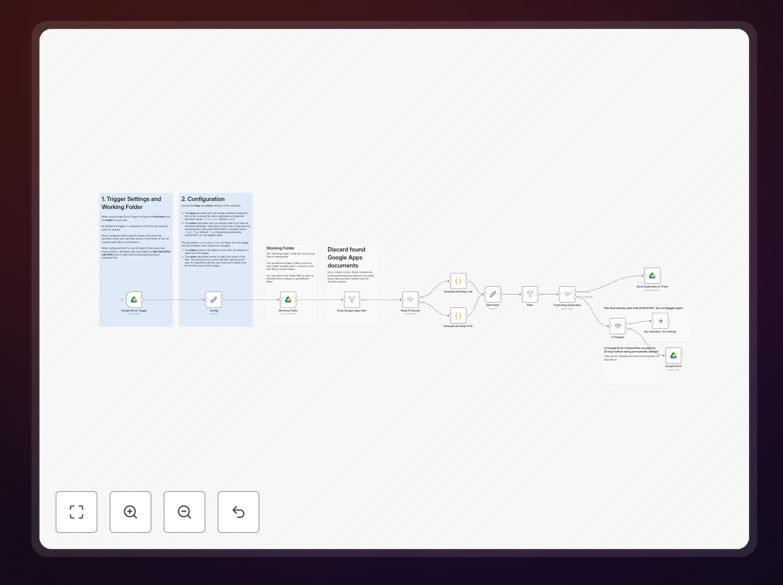
Google Drive duplicate file manager n8n workflow interface showing automation nodes

What This Workflow Does

Duplicate files silently consume valuable Google Drive storage, create confusion during collaboration, and waste hours of manual cleanup time. This automation solves that problem systematically.

The workflow continuously monitors your specified Google Drive folders, identifies duplicate files using content verification (MD5 checksums), and takes action based on your rules—either moving duplicates to trash or flagging them with "DUPLICATE-" prefixes. It handles the tedious work so your team can focus on what matters.

Beyond simple cleanup, this system establishes ongoing file hygiene, preventing storage bloat before it becomes a costly problem. It's particularly valuable for teams sharing drives, agencies managing client assets, or any business where multiple people upload similar files.

How It Works

The automation follows a logical four-step process that mimics how a meticulous human would clean files, but with perfect consistency and at scale.

1. Trigger & Monitoring

A Google Drive trigger node watches your designated folder (or entire drive) for new file activity. You configure the polling interval—typically every 15-60 minutes—balancing responsiveness with API usage considerations.

2. Configuration & Rules

A configuration node lets you set key decisions: keep the "first" or "last" uploaded version of duplicate files, and choose between "trash" (deletion) or "flag" (renaming) actions. These rules ensure the automation aligns with your business processes.

3. Duplicate Detection

The workflow retrieves file metadata and calculates MD5 checksums—a unique fingerprint of file content. Files with identical checksums are confirmed as exact duplicates, regardless of filename differences. Google Docs/Sheets are intelligently excluded from this comparison.

4. Action & Cleanup

Based on your configuration, duplicates are either moved to Google Drive trash (with recovery possible) or renamed with "DUPLICATE-" prefixes for manual review. The original file you chose to keep remains untouched and accessible.

Pro tip: Start with "flag" mode for 30 days to build confidence in the detection accuracy before switching to automatic deletion. Create a separate "Archive" folder instead of trash if you need longer recovery windows.

Who This Is For

Who This Is For

This automation delivers immediate value to specific teams and scenarios where file management directly impacts productivity and costs.

Marketing & Creative Teams: Agencies storing client assets, design files, and campaign materials often accumulate multiple versions of the same images, videos, or documents. Automated cleanup ensures everyone accesses the correct latest version.

Remote & Distributed Teams: When team members collaborate across locations and time zones, duplicate uploads are inevitable. This workflow maintains a single source of truth without requiring manual coordination.

Businesses on Google Workspace: Organizations paying for additional storage can directly reduce costs by eliminating wasted space. The savings often justify the automation investment within months.

IT & Operations Teams: Professionals responsible for data management, backups, and compliance benefit from automated file hygiene that reduces backup sizes and ensures cleaner data governance.

What You'll Need

  1. A running n8n instance (cloud or self-hosted) with editor access.
  2. Google Drive account with files to manage (personal, business, or shared drives).
  3. Google Cloud Platform project with the Drive API enabled and OAuth credentials configured in n8n.
  4. Clear understanding of which folders to monitor and your preferred duplicate handling rules.
  5. API quota awareness – Google imposes daily limits, so consider volume when setting polling intervals.

Quick Setup Guide

Follow these steps to implement the automation in under 30 minutes:

  1. Download & Import: Click the download button above and import the JSON file into your n8n instance via the "Import from File" option.
  2. Configure Google Drive Connection: In the Google Drive trigger node, set up OAuth2 authentication with your Google account, granting necessary file read/write permissions.
  3. Set Monitoring Scope: Choose whether to monitor a specific folder (recommended) or your entire Drive root (use with extreme caution).
  4. Define Rules: In the configuration node, select "keep first" or "keep last" and choose between "trash" or "flag" actions.
  5. Test & Activate: Run the workflow once in test mode with a small folder, verify the results, then activate it for continuous operation.

Warning: If configuring for the root folder, be aware it will process ALL files in ALL sub-directories. Test thoroughly with a limited folder first to avoid accidental modification of important files.

Key Benefits

Save 10-30% on Google Workspace storage costs by eliminating duplicate files that provide no business value. For teams at storage limits, this can defer expensive plan upgrades.

Recover 5+ hours monthly per team member previously wasted on manual file organization and searching through cluttered drives. That time reinvests into productive work.

Eliminate collaboration errors caused by team members working on different versions of the same file. Automated cleanup establishes clear file authority.

Scale file management effortlessly as your team and data grow. The automation handles 100 or 100,000 files with the same efficiency.

Maintain continuous file hygiene without ongoing effort. Once configured, the system prevents duplicate accumulation indefinitely.

Frequently Asked Questions

Common questions about Google Drive automation and file management

Duplicate files in Google Drive often accumulate from multiple uploads, team collaboration, syncing errors, or saving attachments from different sources. Without a system to detect them, storage gets wasted and finding the right file becomes difficult.

Automation solves this by continuously scanning and flagging duplicates based on actual file content, not just names. This prevents the slow accumulation that eventually requires major cleanup projects.

Cleaning duplicates directly saves on Google Workspace storage costs, which scale with usage. It improves team productivity by reducing time wasted searching for files and prevents errors from using outdated versions.

For businesses, it ensures data integrity and simplifies backup processes. Cleaner drives also enhance security by reducing the attack surface and making permission management more straightforward.

  • Direct reduction in cloud storage expenses
  • Faster file retrieval during critical tasks
  • Reduced risk of compliance issues from outdated files

Manual cleanup is time-consuming, error-prone, and quickly becomes outdated. Automated detection runs continuously, uses file checksums for 100% accuracy, and applies consistent rules.

It can process thousands of files in minutes versus hours of manual work, and prevents future accumulation. Automation also removes human bias and ensures compliance with predefined business rules.

Flagging is safer for initial runs, allowing review before deletion. Once confident in the rules, automatic deletion saves the most time. Best practice: flag for 30 days, then automate deletion of flagged files older than that period.

Always keep at least one copy based on your 'keep first' or 'keep last' rule. Consider your recovery needs—trashed files remain recoverable for 30 days in Google Drive, providing a safety net.

Yes, automation can be configured for specific shared drives or individual folders. It works with binary files (PDFs, images, videos, ZIPs) by comparing checksums.

Google Docs/Sheets are typically excluded as they're not binary files, but the system can be adapted to handle them differently based on title, content, or collaboration history.

The main risk is accidentally deleting important files. Mitigations include: testing on a copy first, implementing a 'quarantine' folder instead of immediate deletion, setting up file version history, and running during low-activity periods.

Proper access controls and audit logs are essential. Always ensure you have recent backups before implementing any automated deletion system.

Absolutely. GrowwStacks specializes in building tailored Google Drive automation systems for businesses. We can create custom workflows for advanced file management, integration with your specific apps, compliance requirements, team collaboration rules, and automated backup solutions.

Our team works with you to understand your unique file workflows, security requirements, and business objectives. We then design, build, and deploy automation that fits seamlessly into your operations.

  • Custom integration with your existing business apps
  • Advanced rules for specific file types and departments
  • Compliance and audit trail implementations
  • Ongoing support and optimization

Need a Custom Google Drive Automation?

This free template is a starting point. Our team builds fully tailored automation systems for your specific business needs.