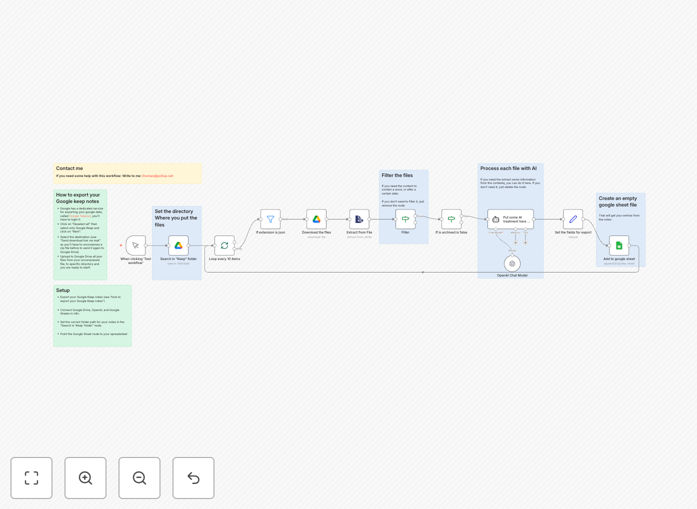
What This Workflow Does
If you've ever exported your Google Keep notes via Google Takeout, you know the frustration: you get messy JSON files that are nearly impossible to work with. This workflow solves that problem completely by automating the entire process of extracting, processing, and organizing your notes into a clean, structured Google Sheet.
The automation searches your Google Drive for exported Keep files, extracts the note content, optionally applies AI-powered summarization or categorization using OpenAI, and writes everything into a spreadsheet with consistent columns. What used to take hours of manual copying and pasting now happens automatically, giving you a searchable knowledge base from your scattered notes.
How It Works
1. Google Drive Search & File Discovery
The workflow begins by searching your specified Google Drive folder for JSON files exported from Google Keep. It identifies all relevant note files and prepares them for processing in manageable batches.
2. JSON Extraction & Content Parsing
Each JSON file is downloaded and parsed to extract the actual note content, titles, timestamps, labels, and other metadata. The system handles the complex nested structure of Google Keep's export format automatically.
3. Optional AI Enhancement
Using OpenAI's models, the workflow can summarize long notes, extract key action items, categorize content by topic, or apply custom transformations based on your specific needs. This turns raw notes into actionable insights.
4. Data Structuring & Preparation
All extracted and enhanced data is organized into consistent fields with proper formatting. The system handles date conversions, text cleaning, and field mapping to ensure clean data ready for spreadsheet import.
5. Google Sheets Integration
The processed notes are appended to your specified Google Sheet with proper column headers. The workflow can update existing sheets or create new ones, maintaining data integrity and preventing duplicates.
Who This Is For
This workflow is ideal for researchers, knowledge workers, content creators, and anyone who uses Google Keep extensively for note-taking. It's perfect for students organizing research notes, professionals managing project ideas, teams collecting brainstorming sessions, or individuals creating personal knowledge bases from years of accumulated notes.
Businesses can use this to transform team brainstorming sessions into actionable project plans, while consultants can convert client meeting notes into structured deliverables. The AI enhancement makes it particularly valuable for anyone needing to extract patterns or insights from large volumes of notes.
What You'll Need
- Google Takeout Export: Your Google Keep notes exported via Google Takeout (deselect all other services, choose only Keep).
- Google Drive Access: The exported JSON files uploaded to a specific Google Drive folder.
- Google Sheets: A destination spreadsheet (existing or new) with appropriate column headers.
- OpenAI API Key: Optional but recommended for AI-powered summarization and categorization.
- n8n Instance: Either self-hosted n8n or n8n.cloud account with the necessary credentials configured.
Pro tip: Before running the full automation, test with a small subset of notes. Create a "test" folder in Google Drive with just 5-10 exported JSON files to verify the parsing and formatting works correctly before processing hundreds of notes.
Quick Setup Guide
- Export Your Notes: Use Google Takeout to export only your Google Keep data. Download the archive and extract the JSON files to a local folder.
- Upload to Drive: Create a dedicated folder in Google Drive (e.g., "Keep Exports") and upload all JSON files there.
- Configure Connections: In n8n, set up credentials for Google Drive, Google Sheets, and OpenAI (if using AI features).
- Import Template: Download and import this workflow template into your n8n instance.
- Update Paths: Modify the Google Drive node to point to your "Keep Exports" folder and the Google Sheets node to your destination spreadsheet.
- Test & Schedule: Run the workflow once to verify everything works, then schedule it for regular execution (weekly or monthly).
Key Benefits
Save 5-10 hours monthly on manual note organization and copying. What used to be a tedious monthly chore now happens automatically while you focus on higher-value work.
Create a searchable knowledge base from years of accumulated notes. Suddenly find that brilliant idea from two years ago instantly using Google Sheets' search and filter capabilities.
Gain AI-powered insights from your note patterns. Discover what topics you think about most, identify recurring themes, and extract actionable items automatically.
Maintain reliable backups of your intellectual property. Google Keep exports combined with automated spreadsheet storage create redundant copies of your valuable thoughts and ideas.
Enable team collaboration on collective knowledge. Share the processed spreadsheet with colleagues while keeping the original notes private, facilitating knowledge sharing without access management headaches.