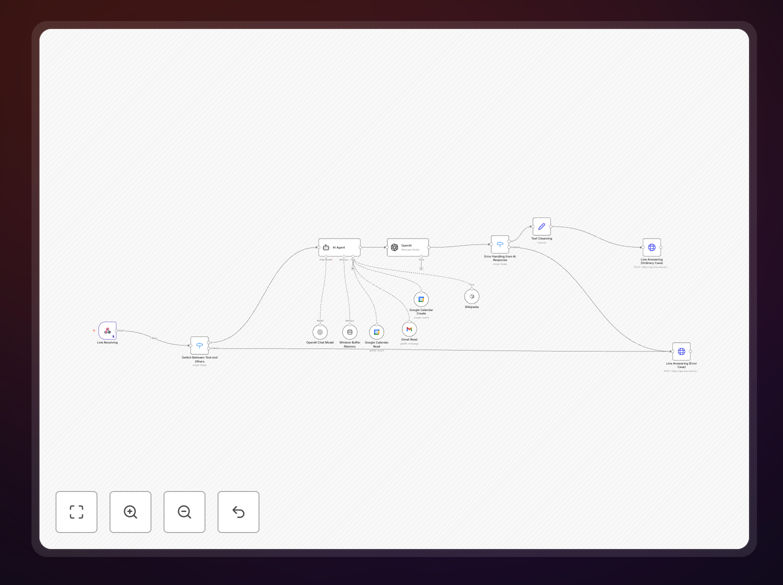
What This Workflow Does
This automation solves the chaos of managing customer conversations, appointments, and emails across separate platforms. If you're a small business owner, freelancer, or team manager using LINE for client communication, you know the drill: a message comes in asking for availability, you check your calendar, draft a reply, maybe send a confirmation email—all manually. This workflow connects LINE, Google Calendar, and Gmail into a single, intelligent assistant.
When a customer sends a message on LINE, the workflow automatically interprets the intent using AI. It can check your Google Calendar for free slots, propose times, and upon confirmation, create a calendar event. It can also search your Gmail for relevant information (like past orders or support tickets) and include that context in its reply. The result is a professional, instant response system that operates 24/7, turning message inquiries into scheduled events and informed replies without you lifting a finger.
How It Works
The workflow acts as a bridge between your communication channel and your productivity tools, using logic and AI to make decisions.
1. Message Trigger & Parsing
A webhook node listens for incoming messages from the LINE messaging platform. When a message arrives, the workflow captures the user's text, profile information, and timestamp. This data is passed to an AI node (like OpenAI) to determine the user's intent—whether they're asking to schedule a meeting, need information from an email, or have a general question.
2. AI-Powered Intent Recognition
The AI agent node analyzes the message content. It's pre-configured with instructions to classify requests into categories like "Schedule Meeting," "Find Email," or "General Query." Based on the intent, the workflow branches into different paths. For example, if the intent is scheduling, it extracts proposed dates/times or asks follow-up questions if details are missing.
3. Google Calendar Integration
For scheduling intents, the workflow queries your Google Calendar via its API to find available slots. It can compare the requested time against your existing events, suggest alternatives if busy, and then—once a time is agreed upon via the chat—create a new calendar event with all details (title, description, attendees, video conference link). An automatic confirmation message is sent back to the user on LINE.
4. Gmail Search & Response
If the user asks for information likely contained in an email (e.g., "What was my invoice number?" or "Send me the proposal"), the workflow uses the Gmail node to search your inbox or sent items. It can filter by sender, subject, keywords, or date range, retrieve the relevant email content or attachment, and summarize or forward that information directly within the LINE chat.
5. Response & Logging
Finally, a tailored response is constructed and sent back to the user via LINE. All interactions can be logged to a spreadsheet or database for record-keeping, ensuring you have a complete history of automated conversations and actions taken.
Who This Is For
This template is designed for service-based professionals and teams who use LINE for client communication and Google Workspace for organization. It's perfect for consultants, coaches, therapists, small agency owners, virtual assistants, and customer support teams. If you spend more than an hour a day coordinating schedules via chat or digging through emails to answer client questions, this automation will save you significant time.
It's also ideal for businesses targeting markets where LINE is the dominant messaging app (like Japan, Taiwan, and Thailand), allowing them to offer a modern, automated booking and support experience directly within the platform their customers prefer.
What You'll Need
- A LINE Developer account and a Messaging API channel to get your Channel Access Token and Channel Secret.
- A Google Cloud Project with the Calendar API and Gmail API enabled, and OAuth 2.0 credentials configured.
- An n8n instance (cloud or self-hosted) where you can import and run the workflow.
- An OpenAI API key (or alternative LLM provider) for the AI intent classification and response generation.
- Basic understanding of webhooks to set up the LINE webhook URL in your n8n environment.
Pro tip: Use n8n's built-in HTTP Request node and webhook testing tools to verify your LINE connection before going live. Start with a test channel to ensure messages flow correctly.
Quick Setup Guide
Follow these steps to get your automated LINE assistant up and running:
- Download & Import: Click the "Download Template" button above to get the JSON file. In your n8n dashboard, go to Workflows > Import from File and select the downloaded file.
- Configure Credentials: Set up the required credentials in n8n: LINE API (Channel Access Token), Google OAuth2 (for Calendar and Gmail), and OpenAI (or your chosen LLM).
- Set Webhook URL: In the LINE Developer Console, set your webhook URL to point to your n8n webhook node's public URL (e.g., https://your-n8n-domain.com/webhook/line).
- Customize AI Instructions: Open the AI agent node and adjust the system prompt to match your business tone and the specific tasks you want it to handle (scheduling, email lookup, FAQs).
- Test with a Message: Activate the workflow and send a test message from LINE to your bot. Monitor the execution in n8n to see each step process and debug if needed.
- Go Live: Once testing is successful, your assistant is ready. Share your LINE bot's QR code or link with customers to start automating interactions.
Key Benefits
Eliminate Manual Scheduling: Automatically convert "Are you free tomorrow?" messages into Google Calendar events, saving 5-10 minutes per booking and preventing double-booking errors.
Instant Customer Support: Provide immediate answers by letting the AI search through Gmail for past correspondence, invoice details, or documents, improving customer satisfaction and reducing response time from hours to seconds.
24/7 Availability: Your virtual assistant handles inquiries outside business hours, capturing leads and scheduling appointments even when you're asleep, ensuring you never miss an opportunity.
Centralized Communication Log: All automated interactions are logged, giving you a clear audit trail of customer requests and bot responses, which is invaluable for follow-up and service improvement.
Scalable Client Management: As your client base grows, this system scales effortlessly, handling hundreds of concurrent conversations without requiring additional staff, allowing you to grow without proportional increases in overhead.