What This Workflow Does
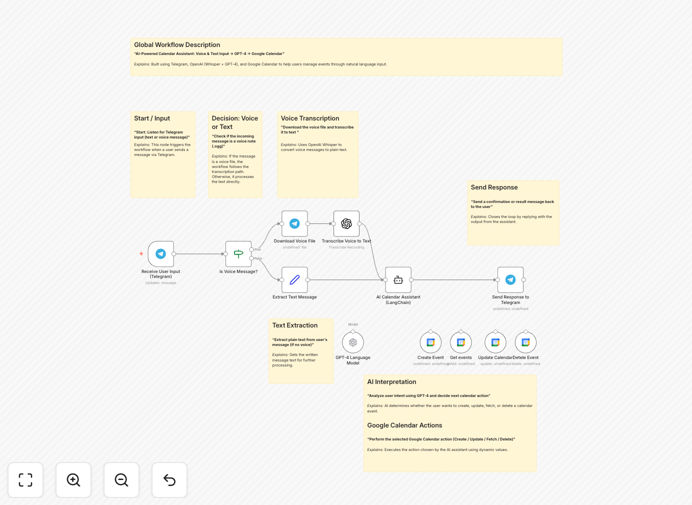
This n8n workflow transforms your Telegram messaging app into a powerful AI-powered calendar management system. Instead of manually opening Google Calendar and clicking through multiple screens, you can simply send a voice message or text command to your Telegram bot, and it will intelligently handle your scheduling needs.
The system uses OpenAI's Whisper to transcribe voice messages, GPT-4 to understand natural language requests, and Google Calendar API to execute the actual calendar operations. Whether you're driving, in a meeting, or just prefer speaking over typing, this automation lets you manage your schedule completely hands-free while maintaining the reliability of Google Calendar's infrastructure.
Business owners, executives, and busy professionals can reclaim hours each week by eliminating the friction of manual calendar management. The assistant understands context, handles complex requests, and provides confirmation—all through the familiar Telegram interface you already use daily.
How It Works
Step 1: Voice or Text Input via Telegram
You send a message to your Telegram bot—either as voice recording or text. Common commands include "Schedule a meeting with Alex tomorrow at 3 PM for 45 minutes" or "What do I have on my calendar this Friday?" The bot captures this input and prepares it for processing.
Step 2: Speech-to-Text Conversion (If Voice)
If you sent a voice message, the workflow uses OpenAI's Whisper model to transcribe it into text with remarkable accuracy, even with background noise or accents. This ensures voice and text commands are processed through the same pipeline.
Step 3: Natural Language Understanding with GPT-4
The transcribed or text command is sent to GPT-4 via LangChain. The AI analyzes the request, extracts key details (dates, times, attendees, event titles), determines the intended action (create, update, delete, or fetch), and structures it into a format the Google Calendar API can understand.
Step 4: Google Calendar API Execution
Based on GPT-4's interpretation, the workflow calls the appropriate Google Calendar API endpoint. It creates new events with proper titles, descriptions, times, and attendees; updates existing events; deletes cancelled meetings; or fetches your schedule for specific time periods.
Step 5: Confirmation Back to Telegram
The bot sends a clear confirmation message back to your Telegram chat, summarizing what action was taken. For fetch requests, it formats the calendar information into an easy-to-read summary. This closed-loop communication ensures you always know the status of your request.
Pro tip: Start with simple text commands to test the workflow, then gradually incorporate voice messages once you're comfortable. The system learns from context, so the more you use it, the better it understands your scheduling preferences and terminology.
Who This Is For
This automation is ideal for busy professionals who manage packed schedules and need quick, hands-free calendar access. Remote teams can use it to coordinate across time zones without constant back-and-forth messaging. Executives and founders who are frequently in meetings or traveling will appreciate the voice command capability.
Virtual assistants and administrative staff can use this to manage multiple calendars more efficiently. Sales teams scheduling client calls can quickly check availability and book meetings while on the go. Healthcare providers, consultants, and service businesses who need to manage appointments with clients will find this particularly valuable for reducing administrative overhead.
What You'll Need
- n8n instance (cloud or self-hosted) with webhook capabilities enabled
- Telegram Bot Token from BotFather on Telegram
- OpenAI API key with access to GPT-4 and Whisper models
- Google Cloud Project with Calendar API enabled and OAuth 2.0 credentials
- Google Calendar account with the calendar(s) you want to manage
- Basic understanding of n8n workflow configuration and credential setup
Quick Setup Guide
Follow these steps to get your AI calendar assistant running in under 30 minutes:
- Download and import the workflow JSON file into your n8n instance using the Download button above.
- Create a Telegram bot via @BotFather on Telegram and save your bot token.
- Configure the Telegram trigger node in the workflow with your bot token and set updates to ["message"].
- Set up OpenAI credentials in n8n with your API key for both GPT-4 and Whisper access.
- Configure Google Calendar OAuth in n8n, authorizing access to your desired calendar.
- Test with a simple text command like "What's on my calendar today?" to verify the connection.
- Enable webhooks if using n8n cloud, or set up proper HTTPS for self-hosted instances.
- Start using voice commands once text commands are working reliably.
Important: For production use, consider adding error handling, rate limiting, and user authentication. The template provides the core functionality—you can extend it with additional validation, logging, or integration with other systems like your CRM or project management tools.
Key Benefits
Save 5+ hours per month on manual calendar management by eliminating the need to switch between apps and manually enter event details. The AI handles the tedious data entry so you can focus on higher-value work.
Reduce scheduling errors caused by double-booking or timezone confusion. The AI assistant checks for conflicts and ensures all calendar entries are accurate and properly formatted.
Enable true hands-free productivity while commuting, exercising, or multitasking. Voice commands mean you can manage your schedule without ever touching a keyboard.
Improve team coordination by allowing multiple team members to interact with shared calendars through a single interface. Everyone stays updated without constant meeting invites and calendar sharing.
Scale your scheduling capacity without hiring additional administrative staff. The AI assistant handles an unlimited number of scheduling requests with consistent accuracy.