What This Workflow Does
This workflow transforms how you interact with Google Calendar by adding an AI layer. Instead of manually creating events, searching through your schedule, or managing cancellations, you can use natural language commands. The AI understands requests like "Schedule a team sync tomorrow at 10 AM" or "Show me all client meetings next week" and executes the appropriate Google Calendar actions automatically.
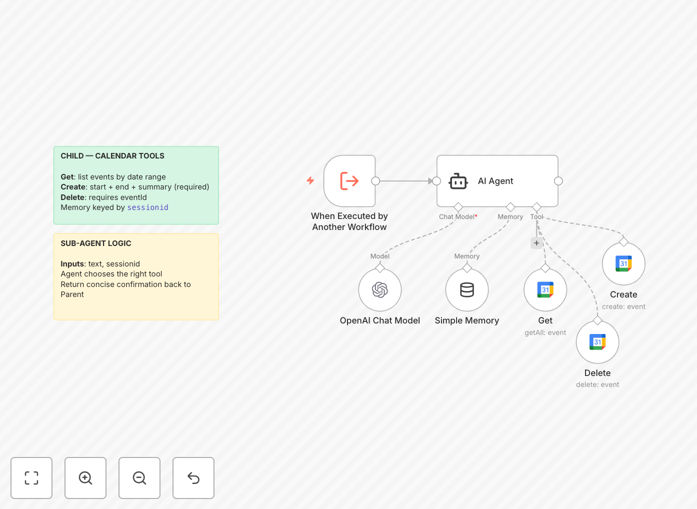
It serves as a tools layer for a parent AI agent, handling three core functions: getting (listing) events, creating new events, and deleting existing events. The workflow accepts text commands along with session identifiers for context, uses an LLM with short-term memory to interpret the request, and then calls the correct Google Calendar API endpoint with properly formatted parameters.
For business owners and teams, this means reducing administrative overhead, minimizing scheduling errors, and reclaiming hours each week that would otherwise be spent on calendar management. The automation ensures consistency in how events are created and makes your calendar truly intelligent and responsive to natural language.
How It Works
The workflow follows a clean pipeline that translates human language into calendar actions:
Step 1: Command Reception
The Execute Workflow Trigger node receives two inputs: the natural language text command and a session ID for context management. This allows the system to maintain conversation history and understand follow-up requests like "move that meeting" or "cancel the last event I created."
Step 2: AI Interpretation
A sub-agent powered by OpenAI's language model analyzes the text command. It determines the user's intent—whether they want to create, list, or delete an event—and extracts key parameters like event names, dates, times, participants, and descriptions.
Step 3: Tool Selection
Based on the AI's analysis, the workflow routes to the appropriate Google Calendar tool node. Each tool is specialized for a specific operation: Get events with filtering options, Create events with all details, or Delete events by identifier.
Step 4: Calendar Execution
The selected Google Calendar node executes the API call with OAuth2 authentication. For creation, it formats all event details; for listing, it applies time filters; for deletion, it locates the correct event ID. The results are then formatted and returned to the user.
Who This Is For
This automation is ideal for busy professionals, executives, sales teams, and administrative staff who manage complex calendars. Virtual assistants and operations managers who coordinate schedules across multiple people will find particular value. Tech-savvy business owners looking to implement AI assistants for their teams can use this as a foundational component.
Consultants and service providers who need to schedule client sessions efficiently can integrate this with their booking systems. Development teams building AI-powered productivity tools can use this workflow as a reference implementation for calendar integrations. Essentially, anyone who spends more than 30 minutes daily on calendar management will benefit from this automation.
What You'll Need
- OpenAI API credentials – You'll need an API key from OpenAI to power the natural language understanding component.
- Google Cloud OAuth2 credentials – Set up a project in Google Cloud Console with Calendar API enabled and create OAuth2 credentials.
- Calendar ID – The identifier for the specific Google Calendar you want to manage (like your primary calendar or a shared team calendar).
- n8n instance – Either self-hosted n8n or n8n.cloud account to run the workflow.
- Parent AI agent (optional) – If integrating into a larger system, you'll need the parent agent that calls this workflow as a tool.
Quick Setup Guide
Follow these steps to get your AI calendar assistant running in under 10 minutes:
- Import the template – Download the JSON file and import it into your n8n instance using the workflow import function.
- Configure OpenAI credentials – Add your OpenAI API key to the AI Agent node settings, selecting the appropriate model for your needs and budget.
- Set up Google Calendar OAuth – Create a new OAuth2 credential in n8n for Google Calendar, following the authentication flow to grant necessary permissions.
- Select your calendar – In each Google Calendar node (Get, Create, Delete), choose your OAuth credential and specify the target calendar ID.
- Test with sample commands – Use the Execute Workflow Trigger manually with commands like "What meetings do I have tomorrow?" to verify everything works.
- Connect to parent agent – If using within a larger AI system, connect the parent agent's toolWorkflow node to this workflow's trigger.
Pro tip: Start with a test calendar rather than your primary one. Create a separate Google Calendar specifically for automation testing to avoid accidental modifications to your important schedule during setup.
Key Benefits
Save 5+ hours monthly on calendar management by eliminating manual event creation and searching. What used to take minutes per meeting now happens instantly with a simple command.
Reduce scheduling errors by 90% through consistent, automated formatting. The AI ensures all events have proper titles, descriptions, times, and timezone handling every time.
Enable natural language interaction with your calendar system. Team members don't need to learn complex interfaces—they just ask for what they need in plain English.
Create scalable scheduling processes that work consistently across your organization. New team members can manage calendars effectively from day one without extensive training.
Integrate calendar management with other business systems. This workflow can be extended to connect with CRM platforms, project management tools, or communication apps for complete workflow automation.