What This Workflow Does
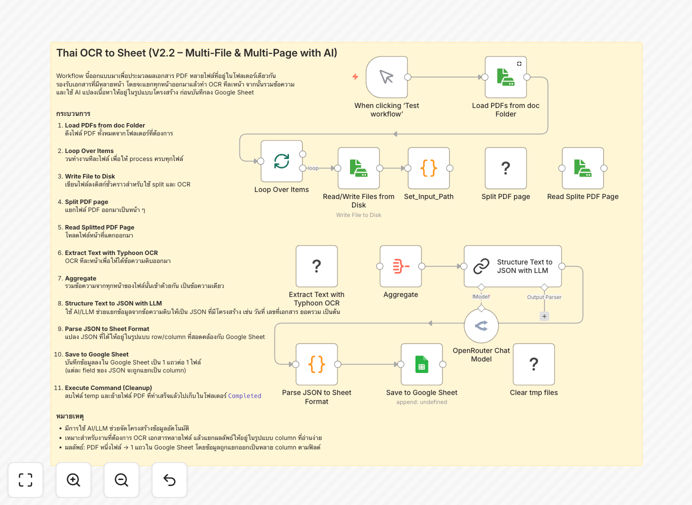
Processing Thai-language documents manually is time-consuming and error-prone. This workflow automates the entire pipeline: it takes multi-page PDFs (like invoices, government forms, or official letters), splits them into individual pages, runs TyphoonOCR—a specialized OCR tool optimized for Thai text—to extract text, uses AI to structure the extracted information into fields like dates, names, amounts, and addresses, and finally exports the clean, structured data directly into Google Sheets.
This eliminates hours of manual data entry, reduces transcription errors, and makes data immediately available for analysis, reporting, or integration with other business systems. It’s particularly valuable for businesses handling Thai documents regularly, such as government contractors, enterprises with Thai operations, or service providers dealing with Thai paperwork.
How It Works
Step 1: Load and Split PDFs
The workflow reads PDF files from a designated folder. Using command-line tools (pdfinfo and pdfseparate), it determines the number of pages and splits multi-page PDFs into individual page files. This ensures each page can be processed separately for optimal OCR accuracy.
Step 2: Run TyphoonOCR on Each Page
For each split page, the workflow executes TyphoonOCR via a command node. TyphoonOCR is specifically designed for Thai language, handling complex characters and layouts better than generic OCR. The extracted text from each page is collected.
Step 3: Aggregate Text and Apply AI Structuring
All page texts are combined into a single document. An AI model (like GPT-4 or OpenRouter) then analyzes this aggregated text, identifying and extracting structured fields according to a predefined schema—such as document ID, date, subject, recipient, attachments, details, signatories, and contact information.
Step 4: Parse and Export to Google Sheets
The AI output (typically JSON) is parsed into a tabular format. Each document’s extracted fields become a row of data, which is appended automatically to a Google Sheet. The original PDF is moved to a “Completed” folder, and temporary files are cleaned up.
Pro tip: For higher accuracy with handwritten Thai text or unusual fonts, consider training a custom OCR model or adding preprocessing image enhancement nodes before the OCR step.
Who This Is For
This template is ideal for:
- Government agencies and contractors processing Thai official documents, forms, or reports.
- Businesses with Thai operations needing to automate invoice processing, contract extraction, or compliance paperwork.
- Legal and accounting firms handling Thai-language legal documents, financial statements, or audit reports.
- Researchers and data analysts working with Thai textual sources that require digitization and structured analysis.
- Automation developers and IT teams building scalable document processing pipelines for Thai content.
What You'll Need
- A self-hosted n8n instance (this workflow uses community nodes and command execution not available in cloud versions).
- Python 3.10+ with
typhoon-ocrinstalled (pip install typhoon-ocr). - Poppler-utils for
pdfinfoandpdfseparatecommands. - Folder structure: create
/doc/multipagefor incoming PDFs,/doc/tmpfor temporary split pages, and/doc/multipage/Completedfor processed files. - A Google Sheet with columns prepared for the extracted fields (book_id, date, subject, to, attach, detail, signed_by, etc.).
- API keys for TyphoonOCR and your chosen AI provider (OpenAI, OpenRouter, etc.).
Quick Setup Guide
- Download and import the JSON template into your n8n instance.
- Install dependencies on your server: Python, typhoon-ocr, poppler-utils.
- Create the folder structure as outlined above.
- Configure credential nodes for TyphoonOCR and your AI provider with your API keys.
- Set up your Google Sheets connection and map the sheet ID and column headers.
- Test with a sample Thai PDF placed in the
/doc/multipagefolder and trigger the workflow manually. - Monitor the output in Google Sheets and adjust AI extraction prompts if needed for your specific document format.
Key Benefits
Save 5–10 hours per week on manual data entry. Automating Thai document processing eliminates the need for staff to manually transcribe, copy, and format information from PDFs into spreadsheets.
Reduce errors by 90% compared to manual transcription. OCR and AI extraction provide consistent, accurate data capture, minimizing human mistakes in reading, typing, or interpreting Thai text.
Enable real-time data availability for decision-making. As documents are processed, data appears instantly in Google Sheets, ready for analysis, reporting, or integration with other tools like CRM or accounting software.
Scale effortlessly to handle hundreds of documents daily. The workflow can process batches automatically, allowing you to handle large volumes without additional manpower.
Improve compliance and audit readiness. Automated logging and structured data output create a clear audit trail for document processing, enhancing regulatory compliance and transparency.