What This Workflow Does
Email overload is a universal business problem. Professionals spend hours weekly searching through old emails for specific information—client requests, project details, meeting notes, or decisions. Traditional email search fails with complex queries because it only matches keywords, not meaning.
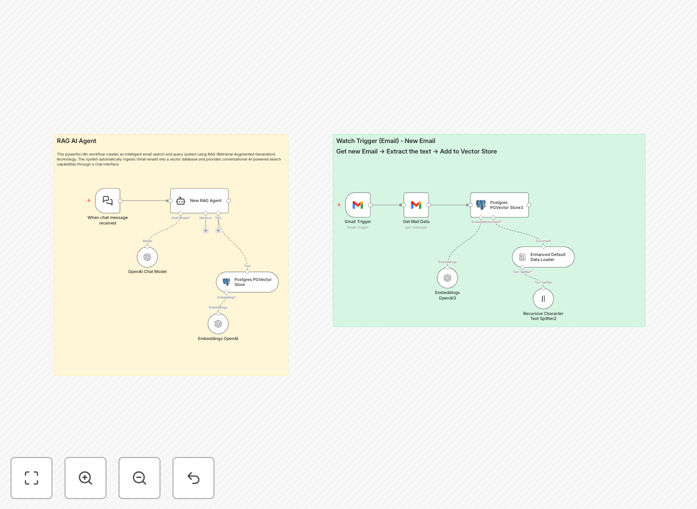
This workflow solves that by creating a real-time AI assistant for your Gmail inbox. It continuously monitors new emails, converts their content into AI-understandable vector embeddings using OpenAI, stores them in a PostgreSQL database with PGVector extension, and enables natural language search through your entire email history. You can ask questions like "What did the client say about the budget last quarter?" or "Find all emails discussing the security audit" and get intelligent, context-aware answers.
The system maintains a searchable knowledge base of your communications without manual effort. It's particularly valuable for project managers, sales teams, support staff, and anyone who needs to retrieve information from email conversations quickly and accurately.
How It Works
Step 1: Email Monitoring & Capture
The workflow starts with a Gmail Trigger node that watches your inbox for new emails. When a new email arrives, it extracts the subject, body content, sender, recipient, date, and any attachments. The system can be configured to monitor specific labels or apply filters to focus on important communications.
Step 2: Text Processing & Chunking
Email content is processed through a text splitter that breaks long messages into manageable chunks. This ensures that even lengthy emails with multiple topics can be properly indexed and searched. The chunking preserves context while creating optimal-sized pieces for AI processing.
Step 3: AI Embedding Generation
Each text chunk is sent to OpenAI's embedding model, which converts the text into a numerical vector—a mathematical representation of its meaning. Similar content produces similar vectors, enabling semantic search that understands concepts rather than just keywords.
Step 4: Vector Storage & Indexing
The generated embeddings are stored in a PostgreSQL database with the PGVector extension. This specialized database efficiently handles vector similarity searches, allowing the system to quickly find emails with related content based on mathematical similarity.
Step 5: Natural Language Query & Response
When you ask a question through the chat interface, the system converts your query into an embedding, searches for the most similar email chunks in the database, retrieves the relevant context, and uses OpenAI's chat model to generate a natural language answer based on the actual email content.
Who This Is For
This automation delivers exceptional value for professionals and teams drowning in email communication. Project managers can instantly retrieve decisions, action items, and client feedback from past discussions. Sales teams can quickly find previous conversations with prospects, pricing discussions, or product requirements. Support staff can locate similar past issues and their resolutions without manual searching.
It's also ideal for consultants and agencies who need to reference client communications across multiple projects, legal and compliance teams tracking communication histories, and executives who need to stay informed about critical discussions without reading every email thread. Any business that relies on email for important communications and needs to retrieve that information efficiently will benefit.
Pro tip: Start by indexing emails from the last 3 months only. This gives you immediate value while keeping initial setup simple. Once you see the benefits, you can backfill older emails or expand the scope to include specific labels like "Important" or "Client Communications."
What You'll Need
- n8n instance (self-hosted or n8n.cloud account)
- Gmail account with API access enabled (requires Google Cloud project setup)
- OpenAI API key with access to embedding and chat models
- PostgreSQL database (version 11+) with PGVector extension installed
- Basic understanding of API credentials and database connections
Quick Setup Guide
Follow these steps to get your email AI assistant running in under 30 minutes:
- Download and import the JSON template into your n8n instance.
- Configure Gmail credentials in the Gmail Trigger node with read-only scope.
- Add your OpenAI API key to both the Embeddings and Chat Model nodes.
- Set up PostgreSQL connection with PGVector extension enabled in your database.
- Adjust parameters like polling frequency (start with 5-minute intervals) and text chunk size (500-1000 characters works well for emails).
- Test the workflow by sending yourself a test email and querying it through the chat interface.
- Deploy and monitor the workflow, checking for any authentication or rate limit issues initially.
Key Benefits
Save 5-10 hours monthly per employee on email searching and information retrieval. What used to take 15 minutes of manual searching now takes seconds with natural language queries.
Never lose critical information in email threads. The AI assistant remembers every discussion, decision, and detail across your entire email history, accessible through simple questions.
Improve decision quality with complete historical context. When you can instantly reference past communications, you make better-informed decisions without memory gaps or incomplete information.
Enhance team onboarding and knowledge transfer. New team members can query the email history to understand project backgrounds, client relationships, and past decisions without bothering colleagues.
Scalable knowledge management that grows with your business. As your email volume increases, the system becomes more valuable, not more burdensome—unlike manual methods that break down at scale.