What This Workflow Does
If your sales team uses a CRM like Pipedrive, HubSpot, or Salesforce, and your marketing team uses Mailchimp for email campaigns, you've likely faced the problem of mismatched contact lists. Sales updates a lead's email in the CRM, but marketing sends to the old address. A new customer signs up via your website, but they never get added to your nurture sequence. These data silos cost you time, money, and customer trust.
This n8n automation workflow solves that by creating a real-time, bidirectional sync between your CRM and Mailchimp. Whenever a contact is created, updated, or changed in one system, the change is automatically propagated to the other. It ensures every email address, phone number, custom field, and tag stays perfectly aligned across your sales and marketing platforms.
The business value is clear: your teams work from a single source of truth. Marketing campaigns are more effective with accurate data. Sales has visibility into email engagement. You eliminate hours of manual CSV exports and imports each week, reduce human error, and create a seamless customer experience from first touch to closed deal.
How It Works
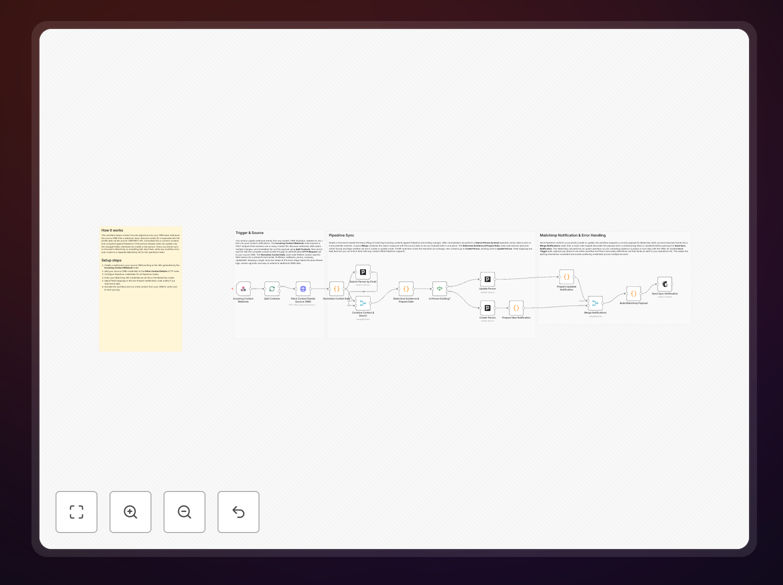
The workflow is triggered by changes in your systems and processes contacts intelligently to respect API limits.
Step 1: Trigger on Contact Change
The automation starts when a webhook receives a contact-update event from your CRM. This could be a new lead created, an email address updated, or a deal stage changed. The webhook captures the full contact data payload.
Step 2: Normalize and Prepare Data
A "Set" node maps the incoming CRM field names (which vary by platform) to a standard schema. For example, first_name from Pipedrive, FirstName from Salesforce, and properties.firstname from HubSpot all become simply firstName. This standardization makes the rest of the workflow platform-agnostic.
Step 3: Batch Processing for Efficiency
A "Split in Batches" node groups contacts into manageable chunks (typically 50-100 per batch). This prevents hitting API rate limits with Mailchimp or your CRM and ensures smooth, reliable execution even when syncing hundreds of contacts at once.
Step 4: Check Existing Records
For each contact, the workflow first checks if they already exist in Mailchimp (by email) and in Pipedrive (by email or ID). This "search" step determines whether the system should create a new record or update an existing one.
Step 5: Create or Update (Upsert)
Based on the search results, "If" nodes branch the logic. If the contact exists, it updates their information with the new data. If they don't exist, it creates a new record. This "upsert" operation (update or insert) is handled separately for Mailchimp and Pipedrive to ensure both systems stay in sync.
Step 6: Merge Results and Handle Errors
Finally, a "Merge" node reassembles the data flow, and any API errors are captured by an "Error Trigger" node that can alert your team via Slack, email, or another channel. This ensures you're notified if sync fails for any reason.
Who This Is For
This automation is ideal for small to medium businesses that use separate systems for sales (CRM) and marketing (email platform). Specifically:
- Marketing teams tired of exporting/importing CSV files to keep lists updated.
- Sales teams who want marketing to have real-time lead information for better nurturing.
- Startups where one person wears both hats and needs automated data flow between tools.
- Agencies managing client campaigns who need reliable contact sync without manual work.
- E-commerce businesses where customer data from Shopify or other platforms needs to flow into both CRM and email marketing.
If you've ever had a sales rep complain that "marketing is emailing the wrong person," or a marketer complain that "sales isn't updating contact info," this workflow is your solution.
What You'll Need
- An n8n instance – either self-hosted or using n8n.cloud.
- API access to your CRM (Pipedrive, HubSpot, Salesforce, etc.) with permissions to read and write contacts.
- A Mailchimp account with an API key and at least one audience/list set up.
- Basic understanding of webhooks (to set up the trigger from your CRM to n8n).
- Optional: A dedicated service account in each platform for the automation (recommended for security).
Pro tip: Before setting up the automation, spend 30 minutes cleaning your existing contact data in both systems. Remove duplicates, standardize field formats (like phone numbers), and ensure email addresses are valid. This prevents the automation from propagating bad data.
Quick Setup Guide
Follow these steps to import and configure the workflow in your n8n environment:
- Download and import: Click the "Download Template" button above to get the JSON file. In your n8n instance, go to Workflows → Import from File and select the downloaded JSON.
- Set up credentials: In n8n's credential manager, create new credentials for Pipedrive (API token) and Mailchimp (API key with your datacenter, e.g., "us-1"). Name them clearly like "Pipedrive Main" and "Mailchimp Production".
- Configure the webhook: Open the Webhook node in the workflow and copy the generated URL. In your CRM, set up a webhook for contact creation/update events pointing to this URL. Test it by creating a test contact.
- Map your fields: In the first "Set" node, adjust the field mappings to match your CRM's exact field names. The template includes common defaults, but you may need to add custom fields.
- Select Mailchimp audience: In the Mailchimp node, choose the specific audience/list where contacts should be added/updated.
- Test and activate: Turn on the workflow and create a test contact in your CRM. Verify it appears in Mailchimp with all correct fields. Then activate the workflow for production use.
Key Benefits
Eliminate 5–10 hours of manual data work per week. No more exporting CSV files from your CRM, cleaning them in Excel, and importing to Mailchimp. The automation handles it all in minutes.
Improve email campaign performance by 15–30%. With accurate, up-to-date contact data, your open rates, click-through rates, and conversions increase because you're sending to the right people with relevant content.
Create perfect sales-marketing alignment. When sales updates a deal stage to "Closed-Won," marketing can automatically trigger a welcome series. When a lead unsubscribes from emails, sales sees it in the CRM immediately.
Scale without adding headcount. As your contact list grows from hundreds to thousands, the automation scales effortlessly. You maintain data quality without hiring a dedicated data manager.
Future-proof your tech stack. The workflow is built on n8n's open-source platform, so you own it completely. You can modify it as your needs change or connect additional tools later.