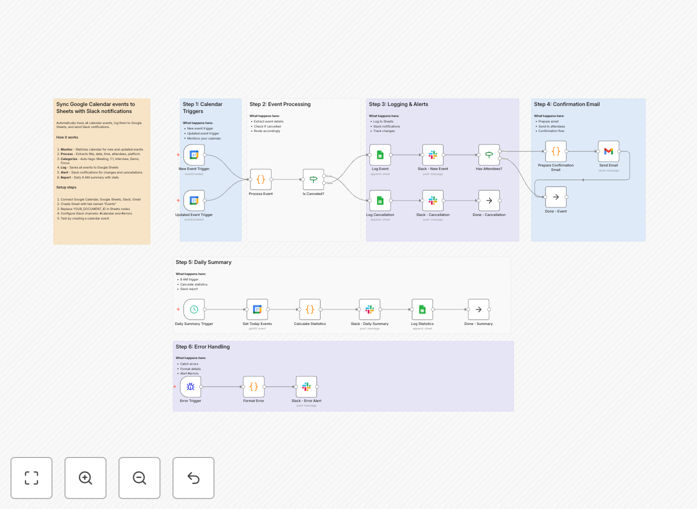
What This Workflow Does
This automation solves the common problem of scattered meeting data across calendars, emails, and notes. Instead of manually tracking your time or copying event details into spreadsheets, this workflow automatically syncs every Google Calendar event to Google Sheets and delivers a daily summary to your Slack channel.
The system captures new events, updates, and cancellations in real-time. It categorizes meetings (1:1s, interviews, demos, focus time), detects video platforms (Google Meet, Zoom, Teams), and calculates meeting duration. Each morning, you receive a Slack message showing total meeting time, busy percentage, and your full schedule—giving you instant visibility into your day.
Beyond personal productivity, this automation creates valuable historical data for analysis. You can identify meeting patterns, track time allocation across projects, monitor cancellation rates, and generate reports for stakeholders—all from automatically collected data that would otherwise require hours of manual work each week.
How It Works
The workflow connects three powerful platforms: Google Calendar as the source, Google Sheets as the data repository, and Slack as the notification channel.
Step 1: Event Capture & Categorization
When a new event appears in your Google Calendar, the workflow immediately captures all details: title, date, time, duration, attendees, meeting link, and description. It automatically categorizes the event based on keywords and patterns—identifying interviews, demos, 1:1 meetings, and focus time blocks.
Step 2: Data Logging to Sheets
The categorized event data gets written to a structured Google Sheet with three tabs: Events (main log), Cancellations (tracked separately), and Statistics (daily summaries). Each entry includes timestamps, categorization, platform detection, and status tracking.
Step 3: Real-time Slack Notifications
For immediate awareness, new events trigger Slack notifications in your designated channel. These include key details like meeting title, time, category, and video link—helping teams stay synchronized without calendar checking.
Step 4: Daily Summary Generation
Every morning at 8 AM, the workflow analyzes the previous day's calendar data and posts a comprehensive summary to Slack. This includes total meeting count, hours spent in meetings, busy percentage, and breakdown of virtual vs. in-person sessions.
Step 5: Cancellation & Update Handling
When events are canceled or rescheduled, the workflow updates the Google Sheets log accordingly and sends appropriate notifications. This maintains data accuracy without manual intervention.
Who This Is For
This automation is ideal for professionals and teams who need better visibility into their time investment. Consultants who bill by the hour can automatically track client meetings. Managers can monitor team meeting loads without intrusive check-ins. Remote teams can maintain awareness of each other's schedules. Executives can analyze how their time aligns with strategic priorities.
It's particularly valuable for agencies tracking client work, sales teams monitoring prospect meetings, HR departments scheduling interviews, and anyone who needs to report on time allocation to stakeholders. The system scales from individual use to department-wide implementation.
What You'll Need
- A Google account with Calendar access
- A Google Sheet with three tabs: Events, Cancellations, Statistics
- A Slack workspace with permission to post to a channel
- n8n installed (cloud or self-hosted)
- Basic understanding of connecting APIs (guided setup included)
Quick Setup Guide
- Download the template using the button above and import it into your n8n instance.
- Create your Google Sheet with the three required tabs (template provides column structure).
- Connect your Google Calendar using OAuth in n8n—this grants read access to your events.
- Connect Google Sheets and update the Document ID in all Sheet nodes.
- Set up Slack webhook for your channel and paste the URL into the Slack nodes.
- Activate the workflow and test with a calendar event—you should see immediate logging.
Pro tip: Start with a test calendar containing a few events before connecting your main calendar. This lets you verify the categorization logic matches your meeting naming conventions.
Key Benefits
Save 2-3 hours weekly previously spent manually logging meetings and creating reports. The automation handles everything from data entry to analysis.
Improve meeting accountability with automatic tracking of cancellations, reschedules, and attendance patterns across teams and projects.
Gain data-driven insights into your time allocation. Identify meeting-heavy days, optimize scheduling patterns, and balance focus time with collaborative work.
Enhance team transparency through shared Slack summaries that keep everyone aligned without calendar snooping or status meetings.
Create audit trails for compliance, billing, or performance reviews with automatically timestamped records of all calendar activity.