Postgres Excel Google Sheets Data Sync Database

Sync Excel or Google Sheets with Postgres Database (Bi-Directional)

Free n8n workflow to keep your spreadsheets and database perfectly synchronized. Migrate from manual spreadsheets to scalable databases without disrupting your team's workflow.

Download Template JSON · n8n compatible · Free
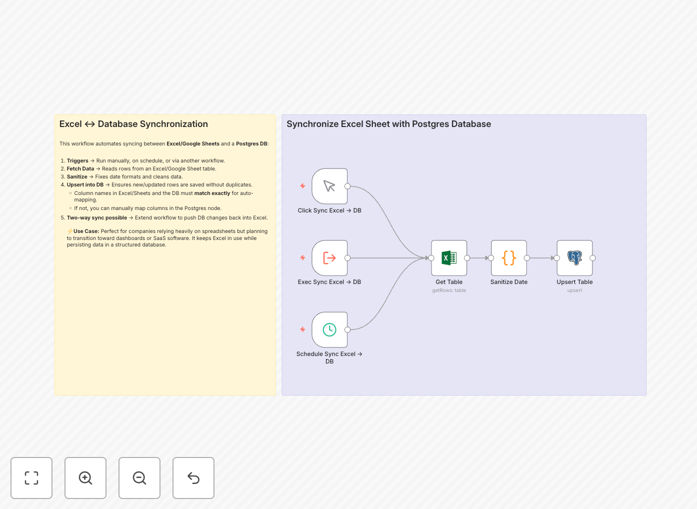
n8n workflow diagram showing Excel/Sheets synchronization with Postgres database

What This Workflow Does

This automation solves a common business challenge: companies that have grown using Excel or Google Sheets for critical operations but now need the scalability, security, and integration capabilities of a proper database. The workflow creates a seamless bridge between familiar spreadsheet interfaces and powerful database systems.

Instead of forcing your team to abandon spreadsheets entirely (which often causes resistance and workflow disruption), this solution allows them to continue working in Excel or Google Sheets while automatically synchronizing all changes to a Postgres database. This gives you the best of both worlds: user-friendly spreadsheet interfaces for your team and robust database capabilities for your applications, dashboards, and reporting systems.

The bi-directional nature means changes flow both ways. Update a customer record in Postgres? It automatically appears in your spreadsheet. Add a new sales entry in Google Sheets? It's instantly available in your database. This creates a single source of truth that's accessible through both simple spreadsheet views and powerful database queries.

How It Works

The workflow follows a logical sequence to ensure data integrity and proper synchronization between systems:

1. Trigger & Data Collection

The automation can be triggered manually, on a schedule (every hour, daily, etc.), or as part of another workflow. It first reads all rows from your designated Excel file or Google Sheet, capturing the current state of your spreadsheet data.

2. Data Sanitization & Preparation

Spreadsheet data often needs cleaning before database insertion. This step converts Excel serial dates to proper date formats, handles empty cells, standardizes text formats, and ensures data types match your database schema requirements.

3. Database Upsert Operations

The core synchronization happens here. The workflow performs "upsert" operations (update or insert) on your Postgres database. If a record exists (based on a unique identifier like customer ID), it updates the existing row. If it's new, it creates a new record. This prevents duplicates while ensuring all changes are captured.

4. Optional Reverse Sync

For true bi-directional synchronization, the workflow can be extended to check for changes in the database and push them back to the spreadsheet. This ensures both systems remain perfectly aligned, regardless of where edits originate.

5. Error Handling & Logging

The workflow includes error handling to manage connection issues, data type mismatches, or permission problems. All synchronization activities are logged for audit trails and troubleshooting.

Who This Is For

This automation is ideal for businesses at various stages of digital transformation:

Growing startups that started with spreadsheets but now need database-backed applications. Operations teams managing inventory, customer data, or project tracking in spreadsheets that need real-time reporting. Finance departments using Excel for budgeting but needing to integrate with accounting software. Sales teams tracking leads in Google Sheets but requiring CRM integration. IT departments tasked with modernizing business processes without disrupting user workflows.

If your team spends hours each week manually copying data between spreadsheets and other systems, or if you're building dashboards and applications that need reliable data from spreadsheets, this automation will save significant time and reduce errors.

What You'll Need

  1. n8n instance (cloud or self-hosted) with appropriate credentials
  2. Postgres database access (connection string, username, password)
  3. Microsoft Excel Online or Google Sheets account with API access
  4. Spreadsheet structure with consistent column headers that match your database table schema
  5. Unique identifier column in both spreadsheet and database for matching records

Pro tip: Start with a test spreadsheet and a separate database table before applying to production data. This lets you verify the synchronization works correctly without risking your live data.

Quick Setup Guide

  1. Import the workflow into your n8n instance using the downloaded JSON file
  2. Configure credentials for Postgres and either Excel Online or Google Sheets
  3. Map your spreadsheet by specifying the workbook, worksheet, and table range
  4. Verify column alignment between spreadsheet headers and database columns
  5. Test with sample data to ensure synchronization works in both directions
  6. Schedule the automation based on your business needs (hourly, daily, real-time)
  7. Monitor initial runs and adjust mapping or error handling as needed

Key Benefits

Eliminate manual data entry errors that cost businesses an average of 5-10 hours weekly in correction time. Automated synchronization ensures data consistency across all systems.

Enable real-time reporting and dashboards by having clean, updated data always available in your database. No more waiting for spreadsheet exports or manual updates.

Scale your operations without retraining teams – employees continue using familiar spreadsheet interfaces while your backend systems gain database power.

Create a migration path to full software systems by using this synchronization as a stepping stone. Data is already structured and clean when you're ready to implement custom applications.

Reduce IT support requests related to spreadsheet version conflicts, broken formulas, or data corruption issues that commonly plague spreadsheet-dependent processes.

Frequently Asked Questions

Common questions about spreadsheet-database synchronization and automation

Syncing spreadsheets with a database provides data integrity, scalability, and enables real-time dashboards and applications while allowing teams to continue using familiar spreadsheet interfaces for data entry and updates.

Businesses often start with spreadsheets because they're accessible and flexible, but as operations grow, spreadsheets become bottlenecks. Databases offer better performance, security, and integration capabilities that spreadsheets alone can't provide.

  • Maintains data consistency across multiple users and systems
  • Enables concurrent access without version control issues
  • Provides audit trails and transaction history

Automation eliminates manual copy-paste errors, ensures data consistency across systems, saves 5-10 hours weekly on data management tasks, and creates a single source of truth for business operations.

Manual synchronization not only consumes valuable employee time but also introduces errors that can cascade through business decisions. Automated sync ensures data is always current and accurate, whether viewed in spreadsheets or through database applications.

  • Reduces operational risk from outdated or incorrect data
  • Frees up skilled employees for higher-value work
  • Provides real-time visibility into business metrics

Yes, the workflow supports both Microsoft Excel and Google Sheets through their respective API integrations, allowing you to choose the spreadsheet platform that fits your team's workflow.

The underlying automation logic remains the same regardless of spreadsheet platform. You simply configure the appropriate credentials and connection settings for either Excel Online or Google Sheets API.

  • Both platforms offer robust APIs for programmatic access
  • Choose based on your team's existing tools and preferences
  • Migration between platforms is straightforward if needs change

Bi-directional sync means changes in either system update the other. If you edit a record in Postgres, it updates the spreadsheet, and spreadsheet changes update the database, maintaining data consistency across both platforms.

The automation detects changes by comparing timestamps, version numbers, or using change tracking features. It then applies those changes to the other system, ensuring both environments reflect the current state of your data.

  • Uses unique identifiers to match records between systems
  • Can be configured for real-time or scheduled synchronization
  • Includes conflict resolution for simultaneous edits

The workflow can be configured with conflict resolution rules, typically using timestamps or version numbers to determine which change takes precedence, ensuring data integrity is maintained.

Common strategies include "last write wins" based on timestamps, manual review queues for conflicting changes, or business rules that prioritize certain data sources over others for specific fields.

  • Conflict detection prevents data loss or corruption
  • Resolution rules can be customized to business needs
  • Audit logs track all synchronization activities

Yes, when properly configured with secure credentials and potentially self-hosted n8n instances, the automation maintains data security through encrypted connections and access controls.

All API connections use OAuth or secure tokens, database connections employ SSL encryption, and you can implement additional security layers like IP restrictions, VPN access, or private networking for sensitive data.

  • Credentials are stored encrypted in n8n's credential system
  • API access follows principle of least privilege
  • Self-hosting options provide complete environment control

Absolutely. The workflow pattern works with MySQL, MariaDB, SQL Server, and other databases supported by n8n, allowing you to adapt the synchronization to your existing database infrastructure.

The core logic of reading spreadsheets, transforming data, and synchronizing with databases remains consistent. You simply replace the Postgres nodes with nodes for your preferred database system.

  • Same workflow structure works across database platforms
  • Minimal changes needed for different SQL dialects
  • Allows migration between databases as needs evolve

Yes, GrowwStacks specializes in building custom spreadsheet-database synchronization systems tailored to your specific business processes, data structures, and integration requirements.

While this free template provides a solid foundation, many businesses need customizations like complex data transformations, multi-system integrations, specialized error handling, or compliance features that require professional implementation.

  • Custom workflows handle unique business logic and rules
  • Integration with existing ERP, CRM, or accounting systems
  • Ongoing support and optimization as needs change

Need a Custom Spreadsheet-Database Automation?

This free template is a starting point. Our team builds fully tailored automation systems for your specific business needs.