Google Sheets Gmail Telegram Jira Project Management

Task Escalation System with Google Sheets, Gmail, Telegram & Jira Automation

Automate urgent task alerts: get instant emails, Telegram reminders, and create Jira tickets automatically when a Google Sheets task is marked urgent.

Download Template JSON · n8n compatible · Free
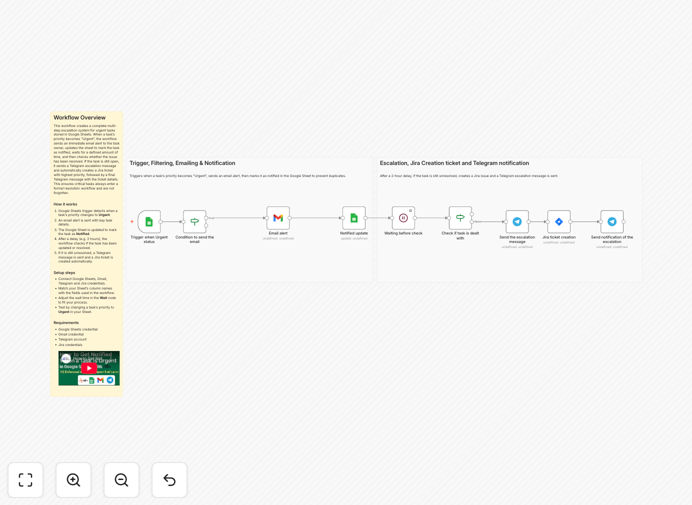
Task escalation automation workflow diagram connecting Google Sheets, Gmail, Telegram, and Jira

What This Workflow Does

This automation solves a common problem in team collaboration: urgent tasks in shared spreadsheets often get overlooked because no one is actively monitoring the sheet. When a task is marked as "Urgent" in a Google Sheet, this workflow instantly sends an email alert to the responsible person, waits 2 hours, checks if the task is still unresolved, then sends a Telegram reminder and automatically creates a Jira ticket with the highest priority. A final Telegram message confirms the ticket creation.

It creates a smart escalation path that moves tasks from informal tracking (Google Sheets) to formal project management (Jira) without manual intervention. This prevents missed deadlines, reduces manual oversight, and ensures accountability. The system is designed to avoid spam—it only escalates if action hasn't been taken.

For project managers, team leads, and remote teams, this workflow eliminates the need to constantly refresh spreadsheets or manually create tickets. It turns a simple priority column change into a coordinated, multi-channel escalation process that guarantees urgent items receive attention.

How It Works

Step 1: Trigger on Priority Change

The workflow starts with a Google Sheets Trigger node that monitors updates to a "Priority" column. When any cell in that column changes, the workflow captures the row data including task name, owner, status, and deadline.

Step 2: Check for "Urgent" Status

An IF node evaluates whether the updated priority equals "Urgent" and whether the task hasn't already been notified (a "Notified" column is empty). This prevents duplicate alerts for the same task.

Step 3: Send Immediate Email Alert

If the conditions are met, a Gmail node sends a personalized email to the task owner or team. The email includes all task details and clearly states the urgency.

Step 4: Mark as Notified & Wait

The workflow updates the Google Sheet row, setting a "Notified" column to "Yes" to flag that an alert has been sent. Then a Wait node pauses for 2 hours—giving the team time to act.

Step 5: Check Status After Delay

After the wait, another IF node checks if the task status has changed (e.g., moved to "In Progress" or "Done"). If it's still unresolved, escalation continues.

Step 6: Send Telegram Reminder & Create Jira Ticket

A Telegram Bot node sends a reminder message to a designated chat or group. Simultaneously, a Jira node creates a new issue in your project, pulling details from the sheet and setting it to highest priority.

Step 7: Confirm Ticket Creation

A final Telegram message is sent with the Jira ticket number and link, confirming that the task has entered the formal workflow and providing visibility to the team.
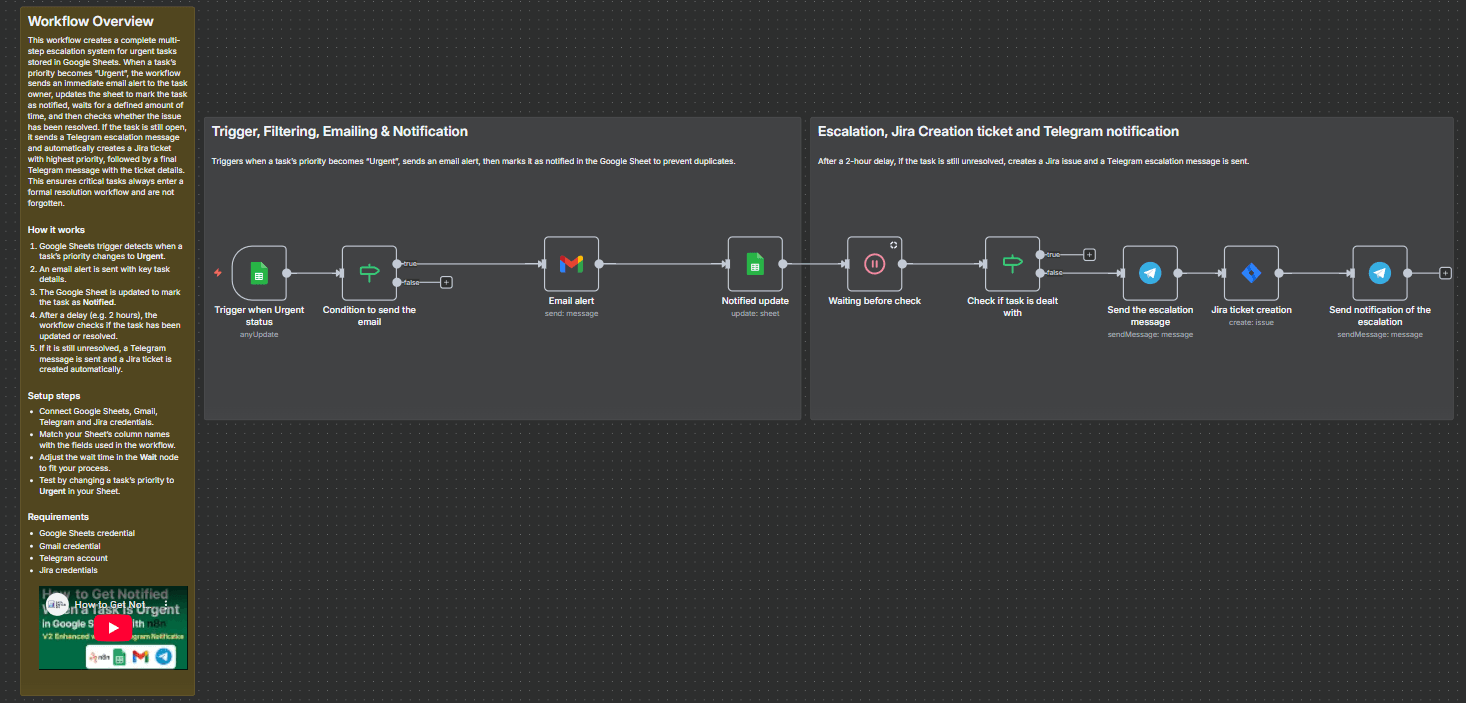
n8n workflow diagram showing the escalation logic from Google Sheets to Gmail, Telegram, and Jira
Workflow diagram illustrating the escalation logic from Google Sheets trigger through conditional checks, email, wait, and final Jira creation.

Who This Is For

This template is ideal for project managers, team leads, operations managers, and remote teams who use Google Sheets for task tracking but need a reliable way to escalate critical items. It's particularly valuable for:

  • Software development teams tracking bugs or features in a sheet before formal ticketing.
  • Customer support teams managing urgent customer requests from a shared spreadsheet.
  • Marketing or content teams with deadline-driven tasks that require quick escalation.
  • Small businesses without dedicated project management software but needing structured escalation.
  • Any team that wants to prevent "urgent" tasks from being forgotten in a spreadsheet.

Pro tip: You can adapt this workflow for different priority levels (Critical, High) and different notification channels like Slack, Microsoft Teams, or SMS by swapping the Telegram node.

What You'll Need

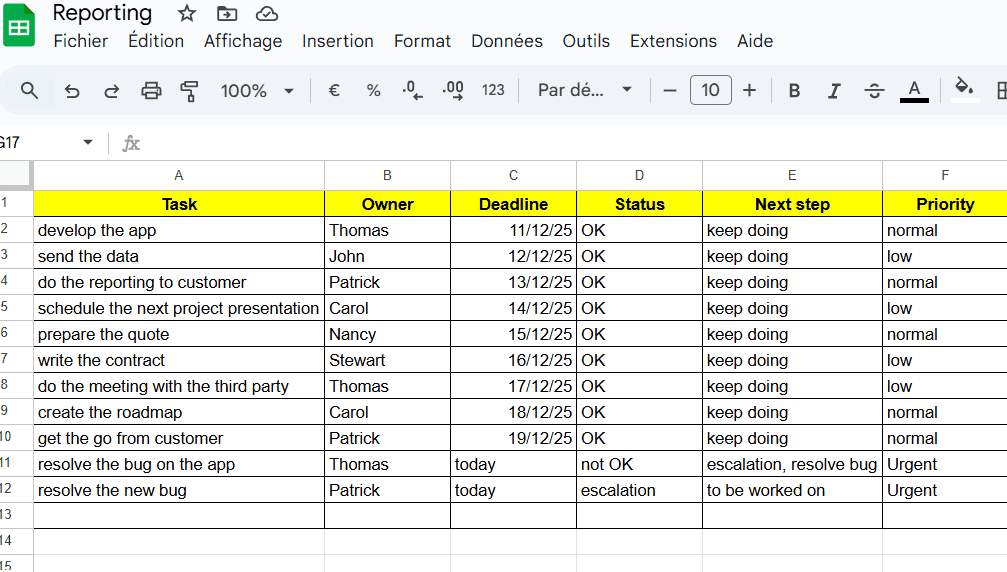
  1. A Google Sheets spreadsheet with a "Priority" column and a "Notified" column (or similar).
  2. Google Sheets credentials configured in n8n (OAuth2).
  3. Gmail credentials (OAuth2) for sending alerts.
  4. A Telegram Bot token and Chat ID for reminder notifications.
  5. Jira credentials (API token or OAuth) and project details for ticket creation.
  6. Basic understanding of your task data structure (columns for task name, owner, status, deadline).

Quick Setup Guide

  1. Download the template JSON file and import it into your n8n instance.
  2. Configure the Google Sheets Trigger node with your spreadsheet ID and range (e.g., "Priority" column).
  3. Set up the Gmail node with your sender email and recipient details (you can use dynamic data from the sheet).
  4. Add your Telegram Bot token and Chat ID in the Telegram nodes.
  5. Connect the Jira node to your instance, specifying project, issue type, and priority mapping.
  6. Test by marking a task as "Urgent" in your sheet—watch the email, wait, and Jira ticket creation flow.
  7. Adjust the wait time (2 hours) and message content to match your team's processes.
Example email alert output showing task details and urgency
Example of the personalized email alert sent when a task is marked urgent, including task title, owner, status, and deadline.

Key Benefits

Reduces response time from hours to seconds. Instead of waiting for someone to notice the spreadsheet update, the responsible person gets an email instantly, ensuring urgent tasks get immediate attention.

Prevents missed deadlines and overlooked tasks. The automated escalation path guarantees that critical items don't linger unnoticed. The 2-hour reminder and Jira ticket creation provide backup accountability.

Eliminates manual spreadsheet monitoring. Teams no longer need to constantly check the sheet for updates. The automation does the monitoring and alerts them only when necessary.

Creates a formal audit trail in Jira. By automatically generating a Jira ticket, the task enters your official project management system with full details, priority, and traceability.

Improves team productivity and reliability. This workflow saves hours of manual coordination each week, reduces human error, and makes your task management process predictable and dependable.

Frequently Asked Questions

Common questions about task escalation automation and integration

Automating task escalation ensures urgent items never slip through the cracks. Manual monitoring of spreadsheets is inefficient and prone to human error. This workflow instantly alerts teams via email, provides follow-up reminders via Telegram, and automatically creates a formal Jira ticket, ensuring accountability and action without constant manual oversight.

For teams using Google Sheets for lightweight tracking, this bridges the gap between informal lists and formal project management. It creates a documented escalation path that moves tasks from awareness to action systematically.

Automation reduces response time from hours to seconds, prevents missed deadlines, eliminates manual spreadsheet checking, and creates a documented escalation path via Jira. It ensures the right person is notified immediately and provides a clear audit trail of the escalation process, improving team productivity and project reliability.

Beyond speed, automation introduces consistency. Every urgent task follows the same process: email alert, timed reminder, ticket creation. This removes variability in how team members handle emergencies and standardizes your escalation protocol.

Integrating Google Sheets with Jira bridges informal task tracking with formal project management systems. Teams can track tasks in a simple spreadsheet, but when urgency is flagged, a structured Jira ticket is automatically created with all relevant details. This maintains flexibility for daily tracking while ensuring critical issues enter the proper workflow with priority and documentation.

This integration allows non-technical team members to flag issues in a familiar tool (Sheets) while automatically generating technical tickets in Jira for developers or project managers. It streamlines cross-team communication and reduces manual ticket creation overhead.

Yes. The workflow logic is modular. You can adjust the priority trigger (e.g., 'Critical', 'High'), change the wait time before reminders, modify the email and Telegram message content, and route tickets to different Jira projects or assignees based on task type or team. This makes it adaptable for sales, support, development, or operations teams.

You can also add additional channels like Slack or Microsoft Teams, incorporate SMS alerts for critical issues, or trigger different escalation paths based on task category. The template provides a foundation you can extend to match your specific business rules.

The workflow includes a conditional check after the 2-hour wait. If the task status in Google Sheets has been updated (e.g., marked 'Done' or 'In Progress'), the Telegram reminder and Jira ticket creation are skipped. This prevents unnecessary notifications and ensures automation only escalates tasks that truly require attention.

This intelligent design avoids alert fatigue. Teams can resolve urgent items quickly, and the system recognizes that and stops the escalation chain. It respects human action and only proceeds when no action has been taken.

Absolutely. It's ideal for remote teams. Google Sheets provides a central, accessible task list. Email alerts reach anyone, Telegram provides quick mobile notifications, and Jira tickets create a centralized record for developers or project managers. The automation ensures everyone stays informed regardless of location or time zone.

For globally distributed teams, you can adjust the wait time based on working hours or set up different escalation rules per region. The workflow operates independently of physical presence, making it perfect for hybrid and remote work environments.

Common pitfalls include not setting clear 'Urgent' criteria, forgetting to update the 'Notified' column to prevent duplicate alerts, misconfiguring Telegram bot permissions or chat IDs, and not mapping Google Sheets columns correctly to Jira ticket fields. Testing with a small sample dataset first helps avoid these issues.

Also ensure your Google Sheets trigger is set to the correct column and range, that your Gmail sender is authorized, and that Jira project permissions allow ticket creation via API. Start with a test sheet and a dummy Jira project to validate the flow before rolling out to production.

  • Test with a small set of sample data first.
  • Verify all credential connections (Sheets, Gmail, Telegram, Jira) individually.
  • Monitor the first few escalations to ensure data mapping is correct.

Yes. GrowwStacks specializes in building tailored automation systems. We can design a custom escalation workflow that matches your specific priority levels, notification channels (Slack, Teams, SMS), integration with your existing project tools (Asana, Trello, Monday.com), and business rules. Book a free consultation to discuss your needs.

Our team can extend this template to include multiple escalation tiers, integrate with your CRM or helpdesk, add approval steps, or create detailed reporting dashboards. We build automations that fit your exact processes, not just generic templates.

  • Custom priority levels and escalation rules.
  • Integration with your existing tools beyond Google Sheets and Jira.
  • Multi-channel notifications tailored to your team's communication habits.
  • Detailed logging and reporting for audit and improvement.

Need a Custom Task Escalation Automation?

This free template is a starting point. Our team builds fully tailored automation systems for your specific business needs.