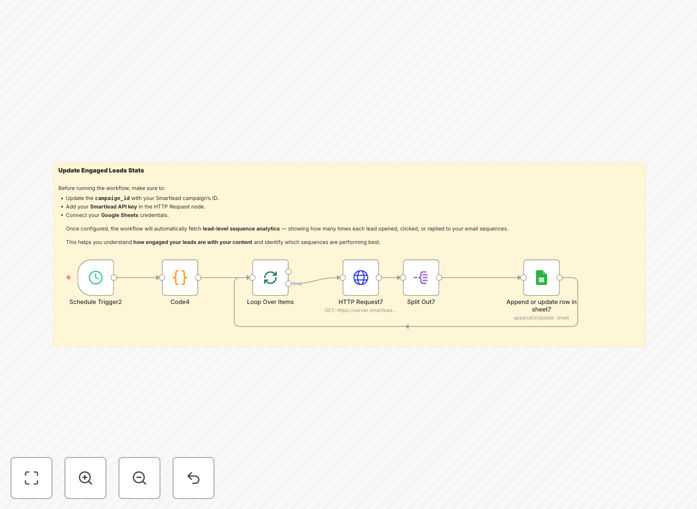
What This Workflow Does
This automation solves a critical problem for sales and marketing teams: fragmented email campaign data. Manually checking Smartlead for opens, clicks, and replies, then copying that data into a spreadsheet is slow, error-prone, and doesn't scale.
This n8n workflow automatically pulls lead-level engagement statistics from your Smartlead campaigns and syncs them into a structured Google Sheet. It handles pagination, prevents duplicates, and updates existing records, giving you a single, always-current source of truth for campaign performance.
The result is a live analytics dashboard that your entire team can access without needing Smartlead logins, enabling data-driven decisions on follow-up timing, sequence optimization, and lead prioritization.
How It Works
The workflow runs on a schedule you set (e.g., hourly or daily) and follows a clear, reliable process.
1. Schedule Trigger & Pagination Setup
A schedule node initiates the workflow. A Code node then generates pagination parameters (offset and limit) to ensure all campaign data is fetched in manageable batches, avoiding API timeouts.
2. Fetch Data from Smartlead API
For each batch, an HTTP Request node calls the Smartlead API endpoint (/campaigns/{campaign_id}/statistics) with your API key, retrieving structured JSON data for each lead in the campaign.
3. Process & Transform Records
A Split Out node separates the API response array into individual lead records. Each record contains fields like lead name, email, sequence step, open count, click time, reply status, and a unique stats_id.
4. Update Google Sheets
The Google Sheets node uses the "Append or Update" operation. It matches incoming records by the stats_id field. If a matching row exists, it updates the metrics; if not, it appends a new row. This prevents duplicate entries.
5. Loop & Complete
The workflow loops through all batches until all data is processed, then completes. You now have a refreshed Google Sheet ready for analysis.
Pro tip: Set this workflow to run daily in the early morning. Your sales team will start their day with yesterday's engagement data already summarized and waiting in their shared dashboard.
Who This Is For
This template is ideal for:
- Sales Teams & SDRs: Who need to quickly identify and act on engaged leads from cold email campaigns.
- Marketing Operations: Professionals who must report on email campaign performance across sequences and time periods.
- Startups & Small Businesses: Running outbound sales campaigns without a dedicated data analyst, needing simple, automated reporting.
- Agencies: Managing cold email for multiple clients, requiring consolidated reporting outside of the Smartlead interface.
- Operations Managers: Looking to create a centralized data hub by combining email engagement with other lead sources.
What You'll Need
- A Smartlead account with an active campaign and API access.
- Your Smartlead API key and the specific Campaign ID you want to track.
- A Google account with a Google Sheet ready (we provide the exact column structure).
- n8n credentials set up for the Google Sheets node (OAuth2).
- Basic familiarity with n8n to import the JSON template and paste in your credentials.
Quick Setup Guide
Follow these steps to get your automation running in under 15 minutes:
- Download the template using the button above and import it into your n8n instance.
- Create your Google Sheet with the tab name "EngagedLeads" and these exact headers in row 1:
lead_name, lead_email, lead_category, sequence_number, stats_id, email_subject, sent_time, open_time, click_time, reply_time, open_count, click_count, is_unsubscribed, is_bounced. - Configure credentials: Add your Smartlead API key and connect your Google account in n8n's credential management.
- Set your Campaign ID: In the HTTP Request node, replace
{campaign_id}with your actual Smartlead campaign ID. - Map the Google Sheet: Point the Google Sheets node to your new sheet and the "EngagedLeads" tab. Set the "Matching Column" to
stats_id. - Test & Activate: Execute the workflow once manually to verify data flows correctly, then activate the schedule trigger for automatic daily updates.
Key Benefits
Eliminate Manual Reporting: Save 5-10 hours per week previously spent on manual data exports and spreadsheet updates. This time can be redirected to analyzing results and optimizing campaigns.
Improve Sales Response Time: With engagement data updating automatically, sales reps can identify and contact "hot" leads (high opens/clicks/replies) within minutes instead of days, significantly increasing conversion rates.
Centralize Your Data: Break down data silos by having your email performance data live alongside other business metrics in Google Sheets, ready for combined analysis in Looker Studio or other BI tools.
Scale Campaign Analysis: Easily track performance across multiple campaigns and sequences without switching tabs or running complex exports. Compare subject line performance, sequence effectiveness, and team performance in one place.
Build Custom Alerts & Triggers: Use the clean data in Sheets to power other automations—like sending a Slack notification when a lead replies, or creating a CRM task when a lead clicks a key link.