n8n Excel Automation Data Processing

Working with Excel spreadsheet files (xls & xlsx)

Automate your Excel file processing with this n8n workflow template. Read spreadsheet data, make modifications, and save updated files automatically. Eliminate manual file handling and reduce errors in your spreadsheet workflows.

Download Template JSON · Zapier compatible · Free
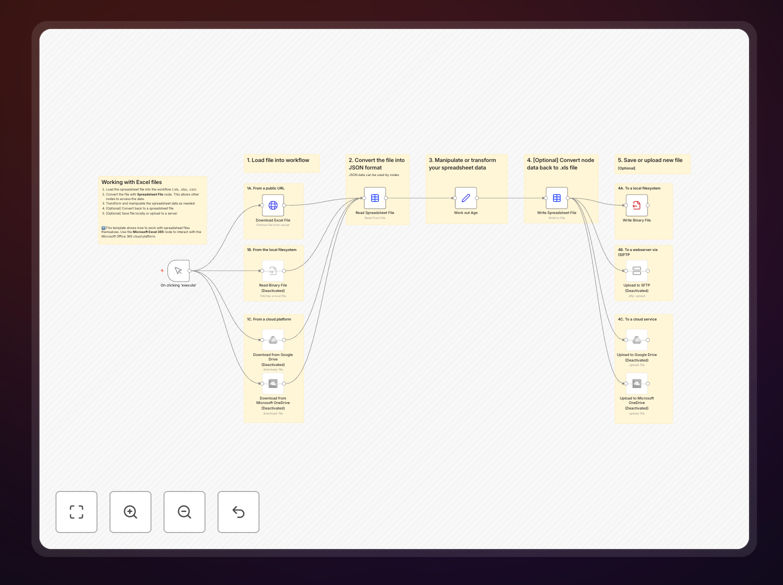
Excel automation workflow diagram

What This Workflow Does

This automation template solves the tedious, error-prone process of manually handling Excel files. Businesses waste countless hours downloading, editing, and re-uploading spreadsheets - this workflow eliminates those repetitive tasks. The template provides a framework for programmatically accessing spreadsheet data, making modifications, and saving updated versions automatically.

The solution handles both legacy .xls and modern .xlsx formats, making it compatible with virtually all Excel files. It can process files from local storage or cloud services like Google Drive and Dropbox. Typical use cases include updating product catalogs, processing financial reports, or cleaning customer data exports before importing to other systems.

How It Works

1. File Acquisition

The workflow begins by retrieving the Excel file from your specified source. This could be a cloud storage location, email attachment, or direct upload. The system validates the file format and prepares it for processing.

2. Data Extraction

Next, the workflow extracts the spreadsheet data into a structured format. It can target specific worksheets or process all sheets in the workbook. The data becomes available for manipulation in subsequent steps.

3. Data Transformation

This is where your custom logic executes. The workflow applies your specified changes - whether that's updating values, reformatting cells, or performing calculations. You can implement conditional logic based on cell contents.

4. File Generation

After processing, the workflow generates a new Excel file incorporating all changes. It maintains original formatting while applying your modifications. The system can preserve formulas and data validation rules.

5. File Distribution

Finally, the workflow saves the updated file to your chosen destination. Options include local storage, cloud services, or attaching to emails. You can configure multiple output locations if needed.

Who This Is For

This template benefits any business or department relying heavily on Excel files. Finance teams automating monthly reports, HR departments processing employee data, and operations managers tracking inventory will find immediate value. It's particularly useful for companies transitioning from manual spreadsheets to more automated systems but still needing Excel compatibility.

Marketing agencies handling client reports, e-commerce businesses managing product catalogs, and consultants analyzing client data can all streamline their workflows. The solution scales from processing a few files weekly to handling hundreds daily, adapting to your volume needs.

What You'll Need

  1. An n8n instance (cloud or self-hosted)
  2. Access to your Excel file sources (cloud storage, email, etc.)
  3. Basic understanding of your spreadsheet structure
  4. Clear requirements for what modifications to automate
  5. Destination locations for processed files

Quick Setup Guide

  1. Download the JSON template file
  2. Import into your n8n workspace
  3. Configure the file source connection
  4. Define your data transformation logic
  5. Set the output destination parameters
  6. Test with sample files
  7. Deploy the workflow on your preferred schedule

Key Benefits

Save 5-10 hours weekly by eliminating manual Excel file handling. Automating repetitive spreadsheet tasks lets your team focus on analysis rather than data entry.

Reduce errors by 90%+ in spreadsheet processing. Automated workflows apply changes consistently without the typos and mistakes of manual editing.

Process files 10x faster than manual methods. The system can handle hundreds of Excel files in the time it takes to manually process a few.

Maintain version control with automated file naming and organization. Never lose track of which version is current or where files are saved.

Integrate with other systems by using Excel as an intermediary format. Automatically prepare data for import into CRMs, ERPs, or accounting software.

Frequently Asked Questions

Common questions about Excel integration and automation

Automating Excel file processing saves significant time by eliminating manual data entry and file handling. It reduces human errors in spreadsheet manipulation and ensures consistent formatting across files. Businesses can process hundreds of Excel files in minutes rather than hours, with automated validation checks ensuring data accuracy before saving modified files.

A retail chain automated their inventory spreadsheet updates, reducing processing time from 8 hours weekly to 30 minutes. The system automatically pulls data from their POS system, updates Excel files, and distributes them to store managers. This eliminated manual data entry errors that previously caused stock discrepancies.

  • Eliminates repetitive manual tasks
  • Ensures consistent file formatting
  • Scales to handle large file volumes

Excel automation workflows can connect with CRM, ERP, and accounting systems to exchange data seamlessly. They can extract data from Excel to update databases or generate reports from business data automatically. Common integrations include pulling customer data into spreadsheets or pushing inventory updates from Excel to e-commerce platforms.

A manufacturing company integrated their Excel-based quality control logs with their ERP system. The automation extracts test results from spreadsheets and updates production records, while maintaining Excel's familiar interface for technicians. This eliminated duplicate data entry while preserving their existing workflow.

  • Bidirectional data flow with business systems
  • Maintains Excel's user-friendly interface
  • Reduces system migration complexity

Common automatable Excel operations include data extraction, formatting changes, formula calculations, and report generation. Workflows can merge multiple spreadsheets, clean inconsistent data, or convert files between formats. Advanced automation can perform conditional operations based on cell values or generate charts and visualizations automatically.

An accounting firm automated their monthly client financial statements. The system pulls data from QuickBooks, populates Excel templates with conditional formatting, generates charts, and saves PDF copies. What previously took hours per client now happens automatically overnight.

  • Handles both simple and complex operations
  • Conditional logic based on cell values
  • Maintains formulas and formatting

Automated Excel processing maintains security through encrypted connections and access controls. Workflows can be configured to handle sensitive data with appropriate permissions and logging. Best practices include using secure cloud storage for files and implementing validation steps to prevent unauthorized modifications to critical spreadsheets.

A healthcare provider implemented automated Excel processing for patient records with strict access controls. The system logs all file accesses and modifications while maintaining HIPAA compliance. Sensitive data remains protected while administrative staff can access necessary information through controlled workflows.

  • Role-based access controls
  • Comprehensive activity logging
  • Data encryption in transit and at rest

Advanced automation platforms can execute Excel formulas and limited VBA macros programmatically. The system can process complex calculations across multiple sheets and maintain formula integrity during file modifications. For mission-critical macros, custom automation solutions often provide more reliable execution than traditional macro automation.

A financial services firm automated their complex pricing models that relied on intricate Excel formulas. The automation preserves all calculations while adding validation checks to flag potential errors. This maintained their sophisticated modeling capabilities while adding reliability through automated processing.

  • Preserves formula dependencies
  • Handles cross-sheet references
  • Adds validation layers

Finance, accounting, and inventory-heavy industries see dramatic efficiency gains from Excel automation. HR departments automate payroll and employee data processing, while marketing teams streamline campaign reporting. Any business relying on spreadsheets for reporting, data analysis, or record-keeping can benefit from automating repetitive Excel tasks.

A logistics company automated their shipment tracking spreadsheets, reducing manual updates from 20 hours weekly to 2 hours. The system now pulls data directly from their tracking API into formatted Excel reports distributed to customers. This improved accuracy while freeing staff for higher-value work.

  • Universal applicability across industries
  • Particularly valuable for data-intensive operations
  • Scales from small businesses to enterprises

GrowwStacks specializes in building custom Excel automation solutions tailored to your specific workflows. Our team analyzes your spreadsheet processes to design efficient automations that integrate with your existing systems. We handle everything from simple file conversions to complex data transformation pipelines, with ongoing support to adapt to your evolving needs.

We've helped businesses automate financial reporting, inventory management, and customer data processing. Our solutions maintain your existing Excel-based workflows while adding automation to eliminate tedious manual steps. The result is more reliable data with less staff time required.

  • Tailored to your specific requirements
  • Seamless integration with current systems
  • Ongoing support and optimization

Need a Custom Excel Integration?

This free template is a starting point. Our team builds fully tailored automation systems for your specific needs.