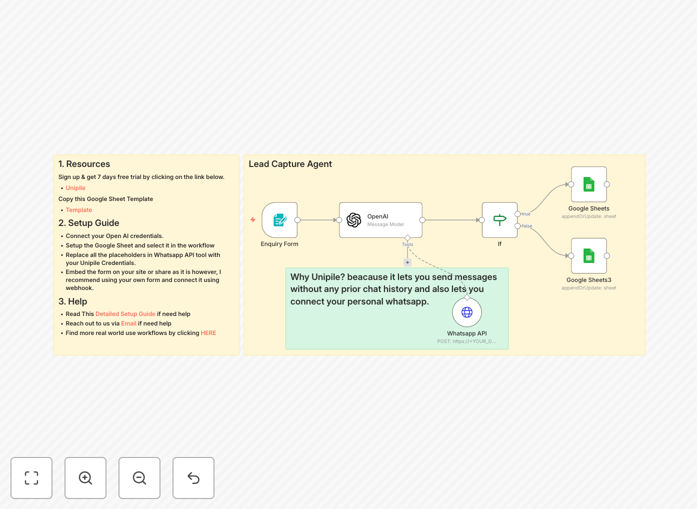
What This Workflow Does
Manual lead follow-up is slow, inconsistent, and misses critical windows of opportunity. This automation solves that by creating a seamless bridge between your website inquiry forms and personalized WhatsApp communication.
The workflow instantly captures a new lead's details—name, email, WhatsApp number, company, and inquiry—from a form submission. It then uses OpenAI to generate a friendly, context-aware introductory message. This personalized message is sent directly to the lead's WhatsApp via the Unipile API, initiating a human-like conversation within seconds. Success or failure is automatically logged in a Google Sheets CRM, giving you complete visibility.
This system transforms a cold lead into a warm prospect before they lose interest, ensuring your sales or support team engages at the perfect moment with the right context.
How It Works
The automation follows a logical, error-proof sequence to ensure every lead is handled professionally.
1. Form Submission Trigger
The workflow is activated the moment a visitor submits your inquiry form. It captures all submitted data, which typically includes the lead's full name, email address, WhatsApp number, company name, and a notes field describing how you can help them.
2. AI-Personalized Message Creation
An OpenAI node, configured as a friendly assistant named "Alex," takes the lead's data and crafts a unique opening message. It personalizes the greeting using the lead's first name and references their specific inquiry to create a relevant, engaging question that encourages a reply.
3. WhatsApp Message Dispatch via Unipile
The personalized message is sent using the Unipile WhatsApp API. Unipile acts as a gateway, handling the complexities of connecting to WhatsApp and sending the initial message without requiring prior chat history from the lead.
4. Success/Failure Logging to Google Sheets
The system checks the API response. If successful, the lead's details, the sent message, and the WhatsApp chat/message IDs are recorded in a "Successful" tab in your Google Sheet. If it fails, the lead's info, the attempted message, and the error reason are logged in a "Failed" tab for follow-up.
Pro tip: Use the "Failed" sheet as a quality control list. Invalid numbers can be flagged for your team to contact via email, helping you clean your lead database over time.
Who This Is For
This automation is a powerful tool for any business that receives leads digitally and values speed and personalization.
Sales Teams & Agencies: Perfect for agencies, consultancies, or B2B sales teams who need to qualify and engage leads instantly after a website contact form submission, moving them into a conversation funnel immediately.
Small Businesses & Solopreneurs: Ideal for owners who wear multiple hats. It automates the critical first touchpoint, ensuring no potential customer slips through the cracks while you're busy with other tasks.
Customer Support & Onboarding: Useful for teams that need to gather more context after a help request or sign-up. It automatically sends a friendly WhatsApp to collect specific details, streamlining the support intake process.
What You'll Need
- An n8n Instance: A self-hosted n8n setup or a n8n.cloud account.
- Google Sheets: A Google account to create and host your CRM sheet.
- OpenAI API Key: An active API key from OpenAI to power the message personalization.
- Unipile Account: A Unipile account (offers a free trial) to access their WhatsApp API gateway.
- A Web Form: Your existing inquiry form (via Typeform, Google Forms, Webflow, etc.) or the n8n Form Trigger node to create one.
Quick Setup Guide
Get this workflow running in your environment in under 30 minutes by following these steps.
- Import the Template: Download the JSON file from this page and import it into your n8n instance.
- Configure Google Sheets: Duplicate the provided "Sales Agent" template sheet into your Drive. Connect the "Google Sheets" and "Google Sheets3" nodes in the workflow to this new sheet using OAuth2 credentials.
- Set Up Unipile: Sign up for Unipile, obtain your DSN, API Key, and Account ID. Enter these credentials into the "WhatsApp API" node in the workflow.
- Connect OpenAI: Add your OpenAI API key as a credential in n8n and link it to the "OpenAI" node in the workflow.
- Connect Your Form: Use the webhook URL generated by the "Enquiry Form" node in your website's form handler, or build a form directly using the n8n Form Trigger node.
- Test & Activate: Submit a test lead through your form. Check your Google Sheets "Successful" tab for the new entry and verify the WhatsApp message was sent. Then activate the workflow.
Key Benefits
Instant Lead Engagement: Contact leads within seconds of submission, when their interest is highest, dramatically increasing conversion rates compared to email follow-ups hours or days later.
Eliminate Manual Data Entry: Automatically logs every lead and interaction detail into your Google Sheets CRM, saving hours of administrative work and preventing human error.
Personalization at Scale: Uses AI to craft unique, relevant opening messages for each lead, making them feel valued and understood without requiring manual copywriting for every submission.
Built-in Error Handling: Failed messages are automatically tracked and segregated, providing a clear action list for your team to follow up via other channels, ensuring no lead is ever completely lost.
Foundation for Expansion: This workflow is a perfect starting point. Easily add steps to notify your team on Slack, create a deal in your CRM, or schedule a follow-up task based on the lead's response.