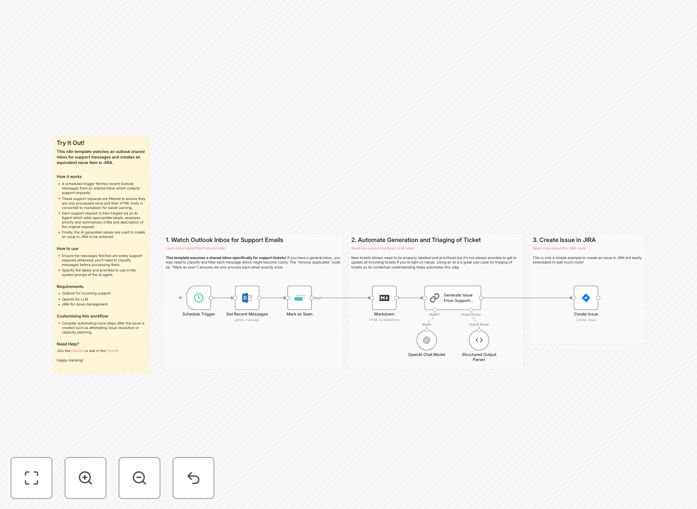
What This Workflow Does
Manual support ticket creation is a time-consuming, error-prone process that delays response times and frustrates both customers and support teams. When support requests arrive via email, team members must read each message, determine priority, extract relevant details, and manually create JIRA tickets—a process that can take 10-15 minutes per request.
This n8n automation template solves this problem by connecting your Outlook shared support inbox directly to JIRA. It automatically monitors incoming emails, uses AI to analyze content and determine priority, extracts key information, and creates properly formatted JIRA issues with appropriate labels, assignees, and descriptions. The result is faster ticket creation, consistent prioritization, and elimination of manual data entry errors.
Beyond basic ticket creation, the workflow includes intelligent filtering to prevent duplicate tickets, converts HTML email content to readable markdown, and can be extended to trigger notifications, update customer records, or escalate urgent issues based on your specific business rules.
How It Works
1. Email Monitoring & Collection
A scheduled trigger checks your Outlook shared inbox at regular intervals (e.g., every 5 minutes) for new support emails. It fetches unprocessed messages while ensuring each email is only handled once through tracking mechanisms.
2. Content Processing & Deduplication
The workflow converts HTML email bodies to clean markdown format for easier parsing. It checks for potential duplicate requests by comparing sender, subject, and content patterns to prevent creating multiple tickets for the same issue.
3. AI-Powered Triage & Analysis
Each support request is sent to an AI agent (OpenAI) that analyzes the content to determine: issue category (bug, feature request, question), priority level (critical, high, medium, low), appropriate labels, and a concise summary. The AI extracts key details from the email to populate ticket fields accurately.
4. JIRA Ticket Creation
Using the AI-generated analysis, the workflow creates a structured JIRA issue with proper project assignment, issue type, summary, description, priority, labels, and any custom fields required by your team. It can also assign tickets based on round-robin or skills-based rules.
5. Confirmation & Logging
The system logs all created tickets, can send confirmation emails to customers, and provides audit trails for tracking automation performance and identifying any issues in the process.
Who This Is For
This automation is ideal for support teams, IT help desks, customer success departments, and product teams that receive support requests via email and use JIRA for issue tracking. It's particularly valuable for:
- Tech companies with developer support channels where timely bug reporting is critical
- SaaS businesses receiving feature requests and technical questions from customers
- Internal IT teams handling employee support requests that need proper tracking
- Growing startups where manual ticket creation is becoming a bottleneck
- Enterprise support centers needing consistent, auditable ticket creation processes
If your team spends more than 5 hours per week manually creating tickets from emails, this automation will provide immediate time savings and process improvement.
What You'll Need
- Outlook account with access to the shared support inbox you want to monitor
- JIRA instance (Cloud or Server) with API access and appropriate project permissions
- OpenAI API key or alternative LLM service for AI-powered triage (can use other AI providers)
- n8n instance (self-hosted or cloud) to run the automation workflow
- Basic understanding of your JIRA project structure, issue types, and custom fields
- Defined support categories and priority levels you want the AI to use for classification
Pro tip: Start with a test JIRA project and limited email filtering rules to validate the automation works correctly before deploying to your production support workflow. Monitor the first 50-100 automated tickets to refine AI prompts and field mappings.
Quick Setup Guide
Follow these steps to implement this automation in your environment:
- Download the template using the button above and import it into your n8n instance
- Configure Outlook node with your shared inbox credentials and set appropriate polling frequency
- Set up JIRA connection with API credentials, project key, and desired issue type mappings
- Add OpenAI API key and customize the system prompt to match your support categories and priorities
- Test with sample emails to ensure proper field mapping and AI classification accuracy
- Deploy the workflow and monitor initial ticket creation for any adjustments needed
- Add team notifications (optional) to alert assignees when new tickets are created
Most teams can have this automation running in production within 2-3 hours of configuration time.
Key Benefits
Reduce manual ticket creation time by 80-90%. What previously took 10-15 minutes per request now happens automatically in seconds, freeing your team to focus on actual problem-solving rather than administrative work.
Ensure no support request gets lost in email. Every incoming message is automatically converted to a trackable JIRA issue with proper audit trail, eliminating the "I thought someone else was handling that" problem common in shared inboxes.
Improve response times with intelligent prioritization. AI analysis provides consistent, objective priority assignment based on actual request content rather than subjective human judgment, ensuring critical issues get attention first.
Standardize ticket quality and completeness. Automated tickets include all necessary information in consistent formats, making them easier to process and reducing back-and-forth clarification requests.
Gain valuable insights from support trends. With all requests properly categorized in JIRA, you can analyze patterns, identify common issues, and make data-driven decisions about product improvements and support resource allocation.