Google Sheets Google Drive CustomJS File Management

Automate Website Screenshots from Google Sheets

Capture visual snapshots of websites listed in a spreadsheet and save to Google Drive automatically

Download Template JSON · n8n compatible · Free
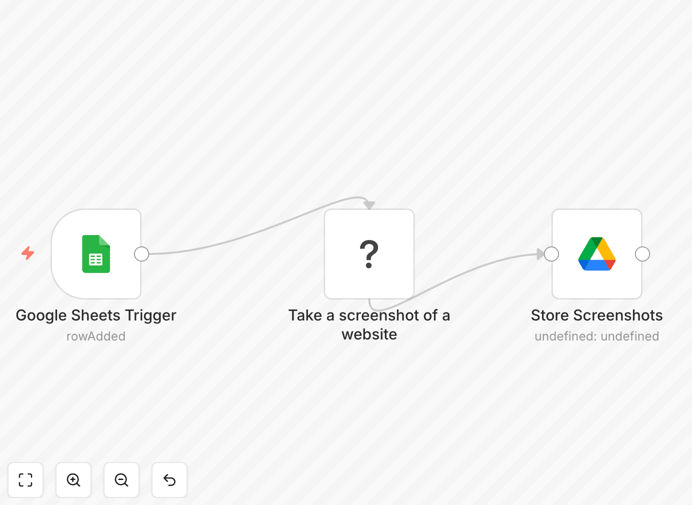
Screenshot of n8n workflow automating website screenshots from Google Sheets

What This Workflow Does

This automation solves the tedious manual process of capturing website screenshots. Marketing teams, researchers, and compliance officers often need to document website appearances, but doing this manually for dozens or hundreds of URLs is extremely time-consuming.

The workflow automatically monitors a Google Sheet for website URLs, captures full-page screenshots using CustomJS's PDF Toolkit, and saves them to a designated Google Drive folder with proper naming conventions. This creates a visual archive that can be used for competitive analysis, content audits, or compliance documentation.
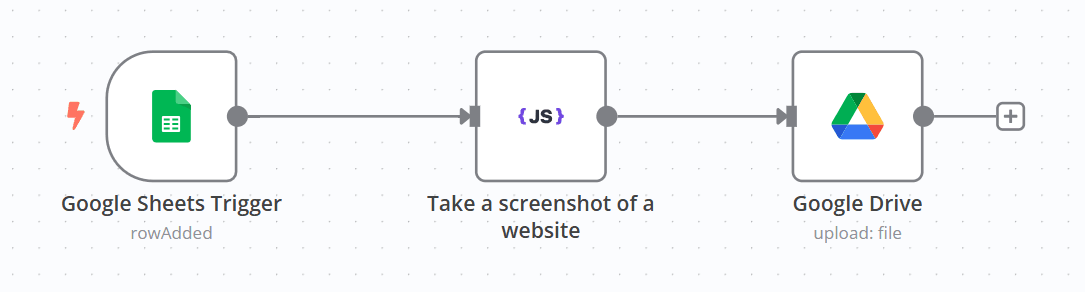
Full workflow diagram showing the Google Sheets to Google Drive automation
Complete workflow structure showing the three main components

How It Works

1. Google Sheets Trigger

The workflow starts by monitoring a specific Google Sheet for new rows containing website URLs and titles. The trigger activates whenever new data is added, ensuring real-time processing of new website monitoring requests.

2. CustomJS Screenshot Capture

Each URL is passed to CustomJS's PDF Toolkit which renders the webpage and captures a full-page screenshot. The tool handles various page sizes and can wait for dynamic content to load before capturing.
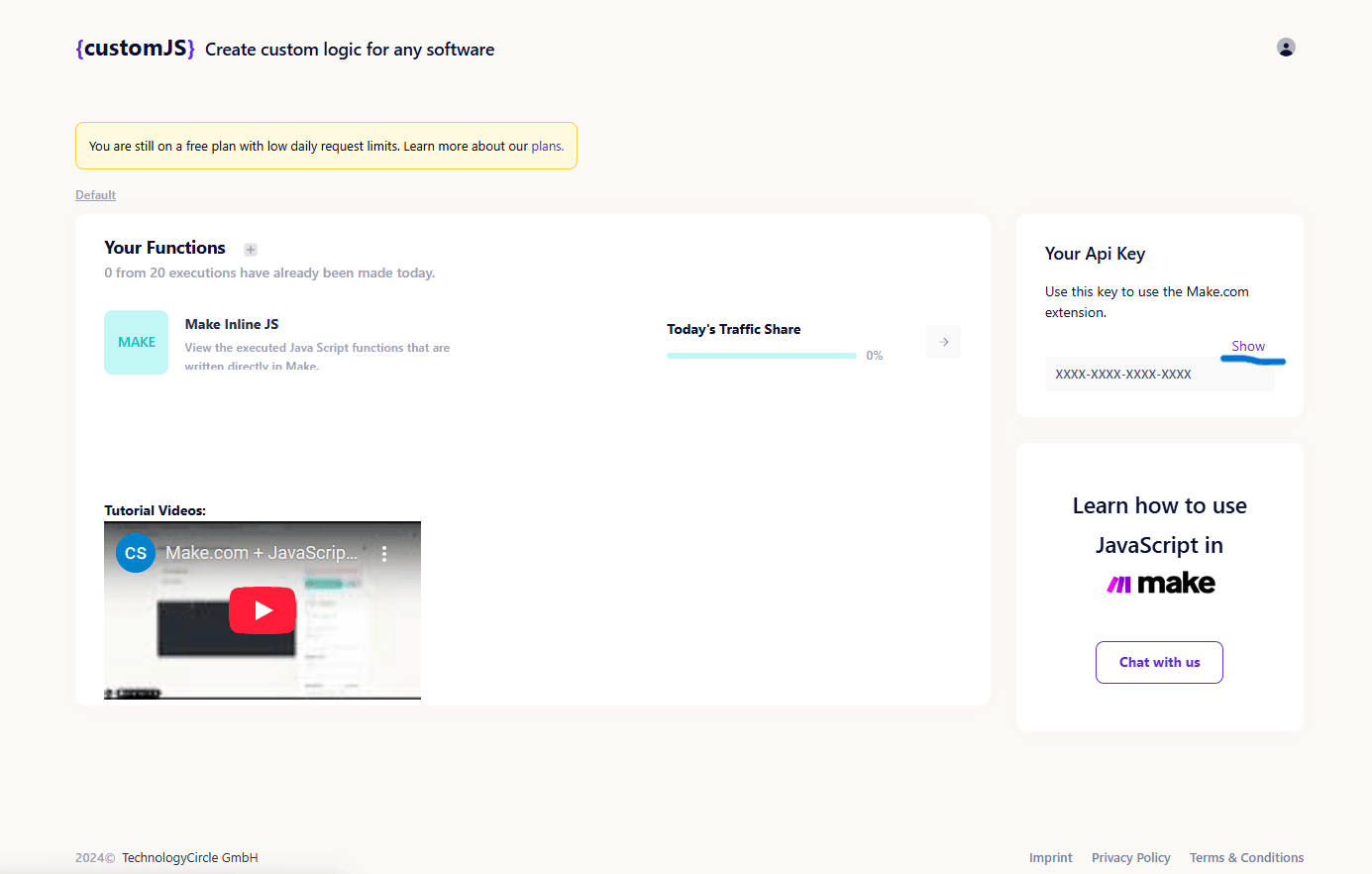
Screenshot configuration settings in CustomJS node
CustomJS node configuration for optimal screenshot capture

3. Google Drive Organization

The captured screenshots are automatically uploaded to a predefined Google Drive folder. The files are named using the title from the Google Sheet, making them easily searchable and organized.
Google Drive node configuration showing folder structure
Google Drive node setup for automatic file organization

Who This Is For

This workflow is ideal for:

  • Marketing teams tracking competitor website changes
  • UX researchers documenting website designs
  • Legal teams maintaining compliance records
  • Content managers archiving website versions
  • SEO specialists analyzing search result pages

Pro tip: For monitoring changing content, schedule this workflow to run daily and add a timestamp to each screenshot filename for version tracking.

What You'll Need

  1. A self-hosted n8n instance (community nodes require self-hosting)
  2. Google Sheets document with URL and Title columns
  3. Google Drive folder for storing screenshots
  4. CustomJS API key (free tier available)
  5. Google service account credentials configured in n8n

Quick Setup Guide

  1. Download the template JSON file
  2. Import into your n8n instance
  3. Configure Google Sheets and Drive credentials
  4. Add your CustomJS API key
  5. Test with a few sample URLs
  6. Schedule the workflow or run manually

Key Benefits

Save 10+ hours per month by eliminating manual screenshot capture and organization. What previously took hours now happens automatically in minutes.

Ensure consistency with standardized screenshot formats and naming conventions across your entire team or organization.

Scale effortlessly from a few URLs to thousands without additional effort. The automation handles the volume automatically.

Centralize documentation with all screenshots organized in Google Drive, making them easily accessible to stakeholders.

Reduce human error by eliminating missed URLs or mislabeled files that often occur with manual processes.

Frequently Asked Questions

Common questions about website screenshot automation and integration

Automating website screenshots saves hours of manual work by automatically capturing visual snapshots of web pages. Businesses use this for competitive monitoring, content archiving, compliance tracking, and visual documentation of web assets.

For example, e-commerce companies track competitor pricing and product pages, while legal teams document website terms of service changes. The automation ensures consistent, timestamped records without manual effort.

Google Sheets provides an easy-to-use interface for non-technical users to manage URL lists. It offers real-time collaboration, version history, and seamless integration with Google Drive for storing the captured screenshots.

Team members can add URLs without technical knowledge, and the automation immediately processes new entries. The spreadsheet also serves as an audit log of all captured screenshots.

Unlike manual tools, this automation runs unattended at scale. It captures full-page screenshots consistently, handles hundreds of URLs, and organizes files automatically - saving 80-90% of the time compared to manual methods.

Manual tools require individual attention for each URL and often produce inconsistent results. This solution standardizes the process while eliminating the repetitive work.

The solution works best with standard HTML websites. For complex pages with heavy JavaScript, you may need to adjust the screenshot delay settings to ensure all content loads before capturing.

Most content management systems, blogs, and marketing sites work perfectly. Single-page applications may require additional configuration for optimal results.

Yes, the workflow can be modified to output different image formats (PNG/JPEG) and resolutions. You can also add watermarks or annotations by extending the CustomJS functionality.

Common customizations include setting specific viewport sizes for mobile/desktop captures or adding timestamp overlays to each screenshot.

The workflow can run on any schedule - hourly, daily, or weekly. For monitoring changing websites, we recommend daily runs. The Google Sheets trigger can also run instantly when new URLs are added.

Frequency depends on your needs. Competitive intelligence might require daily captures, while compliance documentation may only need monthly snapshots.

Our team specializes in building tailored web monitoring solutions. We can create custom workflows that capture specific page elements, track changes over time, and integrate with your existing systems.

Custom solutions might include:

  • Change detection between screenshot versions
  • Integration with internal CMS or DAM systems
  • Advanced scheduling for global website monitoring
  • Automated reporting with visual comparisons

Need a Custom Website Monitoring Automation?

This free template is a starting point. Our team builds fully tailored automation systems for your specific business needs.