Google Calendar Zoom Gmail Slack Automation

Form to Meeting Automation: Google Calendar, Zoom, Gmail & Slack

Transform form submissions into fully scheduled meetings instantly. No manual coordination, no double-bookings, no missed confirmations.

Download Template JSON · n8n compatible · Free
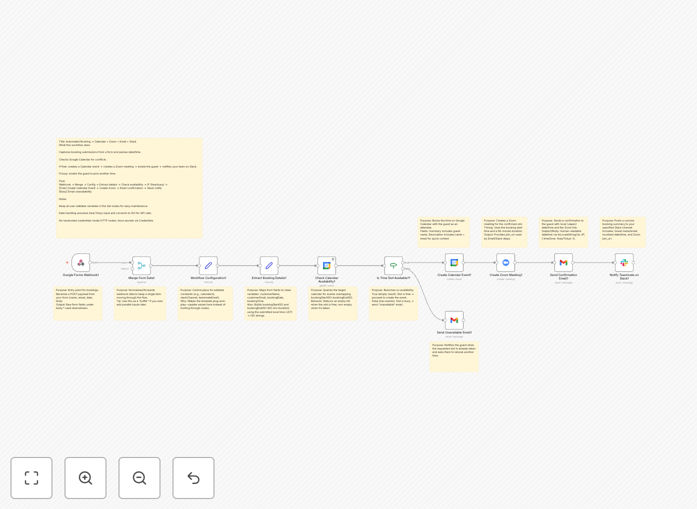
Visual diagram showing form submission flowing to Google Calendar check, Zoom meeting creation, Gmail confirmation, and Slack notification

What This Workflow Does

Manual meeting scheduling is a time-consuming, error-prone process that frustrates both your team and your clients. This automation solves that by creating a seamless pipeline from initial request to confirmed meeting.

When someone submits a meeting request through your form, this workflow automatically checks your Google Calendar for availability. If the slot is free, it creates a calendar event, generates a Zoom meeting link, sends a professional confirmation email to the guest, and posts a summary to your team's Slack channel. If the requested time is busy, it sends a polite alternative-time request email—all without any human intervention.

The system handles time zone conversion internally (defaulting to Asia/Tokyo but configurable to any time zone), ensuring consistency across all integrated platforms and eliminating time zone confusion.

How It Works

Step 1: Form Submission Trigger

The workflow activates when a form submission arrives via webhook. It extracts the guest's name, email, preferred date, and time from the form data, then normalizes this information for consistent processing.

Step 2: Calendar Availability Check

The system queries your Google Calendar to see if the requested time slot is available. It uses the calendar ID you specify and checks for any existing events that would conflict with the proposed meeting.

Step 3: Conditional Branching

Based on the calendar check result, the workflow branches. If the slot is free, it proceeds to schedule the meeting. If busy, it triggers the "alternative time" email path.

Step 4: Meeting Creation & Notification

For available slots: creates a Google Calendar event with all details, generates a Zoom meeting with secure join link, sends a beautifully formatted Gmail confirmation to the guest, and posts a concise summary to your designated Slack channel for team awareness.

Step 5: Alternative Time Request

For busy slots: sends a professional email asking the guest to select another time, often including a link back to your scheduling page or suggesting specific alternative slots.

Who This Is For

This automation is ideal for customer success teams managing onboarding calls, sales teams scheduling demos, education providers coordinating tutoring sessions, agencies booking client consultations, and community managers organizing office hours.

Any business that collects meeting requests through forms—whether it's a "Contact Us" form, consultation request, demo signup, or interview scheduling—will benefit from eliminating the manual back-and-forth that typically follows form submission.

What You'll Need

  1. Active accounts for Google Calendar, Zoom, Gmail, and Slack
  2. n8n credentials configured for each of these services
  3. A form or webhook source that sends structured data (name, email, datetime)
  4. Google Calendar ID where meetings should be scheduled
  5. Slack channel ID for team notifications
  6. Sender email address for confirmation messages

Pro tip: Before going live, test with a separate test calendar and Slack channel to ensure everything works as expected without affecting your real operations.

Quick Setup Guide

  1. Import the downloaded JSON template into your n8n instance
  2. Open the "Workflow Configuration (Set)" node and update the variables: calendar ID, meeting duration, Slack channel, and sender information
  3. Map your form fields in the "Extract Booking Details" section to match your form's data structure
  4. Connect credentials in each service node (Google Calendar, Zoom, Gmail, Slack) using n8n's credential manager
  5. Test the workflow with a real form submission to verify all connections work correctly
  6. Activate the workflow and connect it to your live form's webhook

Key Benefits

Save 15-30 minutes per scheduled meeting by eliminating manual coordination, calendar checking, link generation, and notification sending.

Reduce no-shows by up to 40% with immediate, professional confirmations that include calendar invites and clear meeting details.

Eliminate double-bookings entirely through automated calendar conflict checking before any meeting is created.

Improve team visibility with automatic Slack notifications that keep everyone informed about scheduled meetings without manual updates.

Create consistent branded experiences with professionally formatted confirmation emails that reinforce your company's professionalism.

Frequently Asked Questions

Common questions about meeting scheduling automation and integration

You can automate meeting scheduling by connecting a form tool to Google Calendar, Zoom, and email. When someone submits a form, an automation workflow checks calendar availability, creates a meeting if free, generates a Zoom link, sends confirmation emails, and notifies your team.

This eliminates manual back-and-forth and scheduling errors that commonly occur when humans coordinate across multiple tools. The automation ensures consistency, reduces no-shows with immediate confirmations, and frees your team from administrative tasks.

  • Connect form submissions directly to calendar systems
  • Automatically check for scheduling conflicts
  • Generate video conference links instantly

Automating meeting bookings saves 15-30 minutes per scheduled meeting, reduces no-shows with automated reminders, ensures no double-bookings, provides professional instant confirmations, and frees up team members for higher-value work.

Beyond time savings, automation creates a consistent, branded experience for clients and prospects. It also provides valuable data on scheduling patterns and conversion rates that can help optimize your meeting processes over time.

  • Significant reduction in administrative overhead
  • Improved client experience with instant responses
  • Better data collection for process optimization

Google Calendar is essential for availability checking, Zoom or Google Meet for video conferencing, Gmail or Outlook for confirmations, and Slack or Teams for internal notifications. Form tools like Google Forms, Typeform, or Calendly can trigger the automation.

n8n connects all these services in flexible workflows that can be customized to your specific needs. Unlike rigid scheduling tools, automation platforms allow you to add conditional logic, integrate with your CRM, and handle edge cases that dedicated scheduling apps can't accommodate.

Best practice is to collect the attendee's time zone in your form, convert all times to UTC in your automation, then display times in each participant's local time zone in confirmations. Most calendar APIs handle time zone conversion automatically when you provide ISO 8601 timestamps with time zone offsets.

For businesses serving global clients, consider implementing time zone detection based on IP address or browser settings, then presenting available slots in the visitor's local time. Always include clear time zone information in confirmation emails to avoid confusion.

Yes, you can automate multi-host scheduling by checking multiple calendars for availability, finding common free slots, and creating calendar events for all participants. More complex scenarios might require round-robin assignment or priority-based host selection, which automation can handle with conditional logic.

For sales teams with multiple account executives, you can implement lead rotation where meetings are automatically assigned to the next available representative. The automation can check individual calendars, assign the meeting, and notify the specific team member—all without manual intervention.

Include the meeting date, time (in recipient's time zone), duration, Zoom/meeting link, dial-in options if applicable, agenda, preparation materials, cancellation/rescheduling instructions, and host contact information.

Personalize with the attendee's name and include calendar invites (.ics files) for easy addition to their calendar. Consider adding value with links to relevant resources, directions to your office if in-person, or pre-meeting questionnaires to make the meeting more productive.

  • Clear date, time, and duration information
  • One-click join links for video conferences
  • Calendar attachment for easy scheduling

Implement email verification, rate limiting, CAPTCHA on forms, required authentication for certain meeting types, minimum lead time requirements, and validation of submitted data. You can also set up approval workflows for high-value meetings or unfamiliar contacts before automatically scheduling.

For additional protection, integrate with spam detection services or implement custom validation rules in your automation. Consider requiring company email domains for certain meeting types or implementing a whitelist/blacklist system for known contacts.

Yes, GrowwStacks specializes in building custom meeting automation systems tailored to your specific business processes, tools, and requirements. We can integrate with your CRM, handle complex scheduling rules, create branded experiences, and ensure reliability for your team's unique workflow needs.

Our team works with you to understand your scheduling challenges, design an automation solution that fits your exact requirements, implement it with best practices for security and reliability, and provide ongoing support as your needs evolve.

  • Integration with your existing tools and CRM
  • Custom scheduling rules and business logic
  • Branded confirmation templates and workflows

Need a Custom Meeting Scheduling Automation?

This free template is a starting point. Our team builds fully tailored automation systems for your specific business needs.