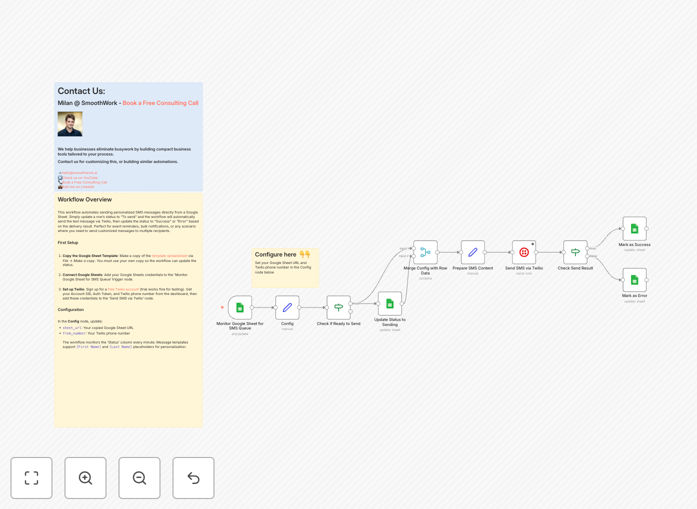
What This Workflow Does
Manual SMS sending is tedious, error-prone, and doesn't scale. This automation solves that by connecting your Google Sheets contact list directly to Twilio's SMS platform. When you mark a row as "To send," the workflow instantly delivers a personalized text message, then updates the status to "Success" or "Error" based on delivery confirmation.
Perfect for appointment reminders, event notifications, marketing campaigns, or any scenario where you need to communicate with multiple people quickly and reliably. The system handles personalization, tracks delivery, and logs results—all without manual intervention.
How It Works
Step 1: Monitor Your Spreadsheet
The workflow polls your Google Sheet every minute, looking for rows where the Status column is set to "To send." It reads the contact details, phone number, and message template for each queued recipient.
Step 2: Personalize and Send
Using placeholders like [First Name] and [Last Name], the system creates a unique message for each contact. It then sends the SMS via Twilio using your configured phone number and credentials.
Step 3: Track and Update
Twilio returns a delivery status for each message. The workflow updates your Google Sheet accordingly—changing the status to "Success" for delivered messages or "Error" for failures (like invalid numbers).
Who This Is For
This automation is ideal for small businesses, service providers, marketers, educators, healthcare practices, nonprofits, and any organization that regularly communicates with customers, clients, or members via text message. If you're currently copying and pasting messages or using manual SMS tools, this workflow will save you hours each week.
What You'll Need
- A Google account with access to Google Sheets
- A Twilio account (free trial works for testing)
- Your Twilio Account SID, Auth Token, and a phone number
- A Google Sheet with columns for: ID, First Name, Phone Number, Message Template, and Status
- An n8n instance (cloud or self-hosted) to run the workflow
Quick Setup Guide
- Copy the template sheet: Make a copy of the provided Google Sheets template to your own Drive.
- Connect accounts: Add your Google and Twilio credentials to the corresponding nodes in the workflow.
- Configure settings: Update the Config node with your sheet URL and Twilio phone number.
- Activate and test: Turn on the workflow, add a test row to your sheet, and set status to "To send."
- Scale up: Once testing succeeds, add your full contact list and let the automation run continuously.
Pro tip: Use separate sheets for different campaigns (e.g., "Event Reminders," "Weekly Promos"). Duplicate the workflow for each sheet to keep campaigns organized and independently manageable.
Key Benefits
Save 10+ hours monthly by eliminating manual copy-paste and sending. What used to take an hour for 100 messages now happens automatically in minutes.
Reduce errors by 90% with automated validation and status tracking. No more missed messages, wrong numbers, or forgotten follow-ups.
Improve response rates through personalized messaging. Using [First Name] and other placeholders makes messages feel one-to-one, increasing engagement.
Gain real-time visibility with automatic status updates in your sheet. Instantly see which messages were delivered, which failed, and why.
Scale effortlessly from 10 to 10,000 recipients without additional work. The system handles the volume while you focus on strategy.