What This Workflow Does
Businesses drown in unstructured documents—invoices, contracts, reports, resumes—stored as PDFs, Word files, or images. Manually extracting text is slow, error-prone, and blocks downstream processes like data analysis, AI search, or translation. This automation solves that by creating a hands‑free pipeline.
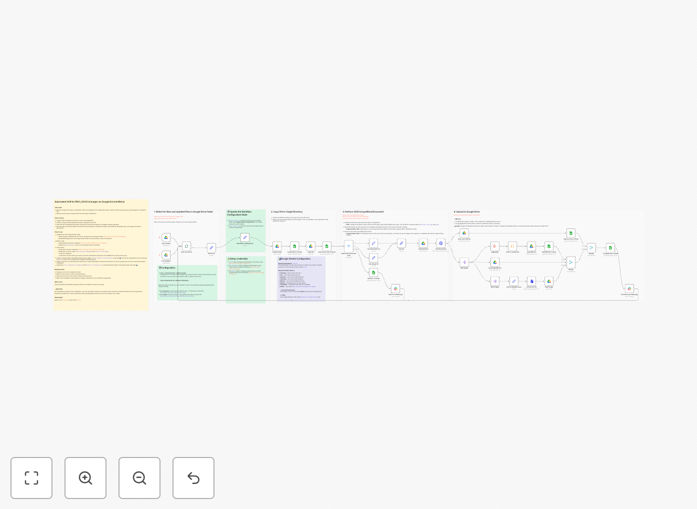
The workflow monitors a designated Google Drive folder. When a new PDF, DOCX, or image file appears, it automatically sends it to Mistral AI’s Document OCR API for high‑accuracy text extraction. The extracted content, along with the original file, is organized into a timestamped output folder. A detailed processing log is written to Google Sheets, and success or error notifications are sent to your Slack channel.
How It Works
Step 1: Trigger on New Files
The workflow is initiated by the Google Drive Trigger node, which watches a specific folder for new or updated files. It filters for supported formats (PDF, DOCX, JPG, PNG, etc.) and passes each file to the next step.
Step 2: Prepare & Route for Processing
A Switch node routes the file based on its type. The system creates a unique destination folder in Google Drive (using a timestamp and filename) and copies the original file there to maintain an audit trail.
Step 3: AI‑Powered Text Extraction
The core of the workflow: the file is sent to the Mistral Document node. This advanced AI OCR model extracts text, understands layout (tables, headers), and returns structured data including raw text, markdown, and references to any non‑OCRable images.
Step 4: Save Results & Log Activity
The extracted data (JSON output, markdown files) is saved back to the destination folder. Simultaneously, key metadata—filename, timestamp, status, and output folder link—is appended to a Google Sheet for a permanent, searchable processing log.
Step 5: Notify the Team
Finally, a Slack message is sent to a designated channel. A success message includes the file name and a link to the output folder. If anything fails, an error alert is sent with details for quick troubleshooting.
Who This Is For
This template is ideal for operations teams, finance departments, legal firms, HR recruiters, researchers, and any business building a data pipeline. If your process involves manually opening documents to copy text, or if you need to feed document content into an AI search (RAG), translation service, or database, this automation is for you.
What You'll Need
- A Google account with API access (for Drive and Sheets).
- A Mistral Cloud account and API key (for the OCR service).
- A Slack workspace where you can create an app for notifications.
- An n8n instance (cloud or self‑hosted) to run the workflow.
- Basic understanding of n8n credentials and node configuration.
Pro tip: Before going live, test with a small set of documents in a dedicated Google Drive folder. This helps you verify the output structure and adjust any folder‑naming conventions to match your internal filing system.
Quick Setup Guide
Importing and configuring this workflow takes about 15 minutes if your credentials are ready.
- Download & Import: Click the "Download Template" button above. In your n8n instance, go to Workflows → Import from file and select the downloaded JSON.
- Configure Credentials: Update all 14 Google Drive/Sheets nodes with your Google OAuth credentials. Set the Mistral node with your Mistral API key. Configure the two Slack nodes with your Slack OAuth2 credentials and select your notification channels.
- Set Your IDs: In the "Workflow Configuration" node, enter your specific Google Drive folder ID (for input) and your Google Sheet ID (for the log).
- Test & Activate: Drop a test PDF into your monitored Google Drive folder. Activate the workflow and watch the automation run—check for the Slack alert and the new folder in Drive.
Key Benefits
Eliminate Manual Data Entry: Transform a task that takes hours per week into a zero‑touch process. Staff can focus on analysis and decision‑making instead of copying text.
Near‑Perfect Accuracy with AI: Mistral’s Document API delivers superior extraction quality compared to basic OCR, especially for complex layouts, handwritten notes, or poor‑quality scans.
Complete Audit Trail: Every processed file is logged in Sheets with a timestamp and outcome. The original and extracted files are neatly organized in timestamped folders, making compliance and reviews straightforward.
Real‑Time Operational Visibility: Slack notifications keep the whole team in the loop instantly. No one needs to poll a dashboard or wonder if last night’s batch of documents was processed.
Foundation for Advanced AI: The clean, extracted text is perfectly formatted for ingestion into Retrieval‑Augmented Generation (RAG) systems, custom LLM training, or automated translation workflows, multiplying the value of your document library.