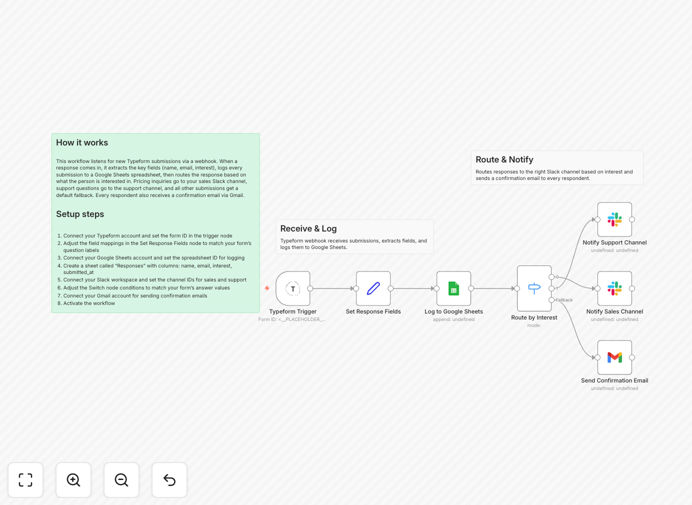
What This Workflow Does
This automation solves the common problem of manually handling form submissions from Typeform. When a user submits a contact form, inquiry, or feedback, the data often sits idle until someone checks and processes it. This leads to delayed responses, missed opportunities, and inconsistent follow-up.
The workflow automatically captures every submission via a webhook, extracts key details like name, email, and message, logs them to a Google Sheets spreadsheet for record-keeping, sends an instant Slack alert to your team for immediate awareness, and dispatches a personalized confirmation email to the submitter via Gmail. It returns a success response to your frontend, completing the loop without any manual intervention.
Essentially, it turns a static form into a dynamic, responsive system that improves customer experience, team efficiency, and data reliability.
How It Works
Step 1: Trigger via Webhook
The workflow starts with a webhook node that listens for incoming Typeform submissions. When a form is submitted, Typeform sends the data to this endpoint, triggering the automation instantly.
Step 2: Extract Submission Data
The workflow parses the incoming JSON payload to isolate the respondent's name, email address, message content, and any other custom fields you've configured. This data is cleaned and structured for downstream actions.
Step 3: Log to Google Sheets
Each submission is appended as a new row in a designated Google Sheets spreadsheet. Columns include name, email, message, and a timestamp of submission. This creates a live, searchable database of all responses.
Step 4: Send Slack Alert
A Slack message is posted to a specified channel (or via direct message) containing the submitter's details and a snippet of the message. This alerts your team in real-time, enabling quick triage or assignment.
Step 5: Dispatch Gmail Confirmation
Using Gmail, a tailored acknowledgment email is sent to the submitter's email address. This confirms receipt, provides expected follow-up timelines, and may include helpful resources—enhancing trust and reducing follow-up inquiries.
Step 6: Return Success Response
The workflow concludes by returning a JSON success response to the frontend, allowing your form interface to show a confirmation message or redirect the user appropriately.
Who This Is For
This template is ideal for businesses and teams that rely on Typeform for:
- Lead generation & contact forms – Sales teams needing instant notification and logging of inquiries.
- Customer support & feedback – Support teams that must acknowledge submissions and route them quickly.
- Event registrations & applications – Marketing or HR teams managing sign-ups that require confirmation and tracking.
- Internal surveys & requests – Operations teams collecting internal data that needs immediate distribution.
- Freelancers & agencies – Professionals who want to automate client inquiry handling without building a backend.
If you're spending time manually checking forms, copying data to spreadsheets, or sending individual acknowledgments, this automation eliminates those repetitive tasks.
What You'll Need
- A Typeform form with webhook capability (or using Typeform's native integrations).
- A Google Sheets spreadsheet with columns prepared (e.g., Name, Email, Message, Submitted At).
- A Slack workspace and channel where alerts should be posted.
- A Gmail account (or Google Workspace) for sending confirmation emails.
- An n8n instance (cloud or self-hosted) to import and run the workflow.
- Basic understanding of webhook URLs and API connections (setup guidance included).
Pro tip: Before activating, test the workflow with a dummy submission to ensure all connections work and the confirmation email template is appropriate for your audience.
Quick Setup Guide
- Download the template – Use the download button above to get the JSON file.
- Import into n8n – In your n8n dashboard, import the JSON file via the workflow import function.
- Configure the webhook – Set the webhook path in the trigger node and note the generated URL.
- Connect Google Sheets – Authenticate your Google account, specify the spreadsheet ID, and ensure sheet name matches.
- Set up Slack – Add your Slack credentials, choose the channel, and customize the alert message.
- Configure Gmail – Connect your Gmail account, draft a confirmation email template, and map the recipient email field.
- Point Typeform to the webhook – In Typeform's integrations, add the webhook URL and activate.
- Test and activate – Submit a test form, verify all steps execute correctly, then activate the workflow.
Key Benefits
Instant response handling eliminates delays. Submissions are processed within seconds, not hours or days, improving customer satisfaction and competitive advantage for lead capture.
Centralized data logging improves visibility. All submissions accumulate in a single Google Sheets tab, enabling easy analysis, reporting, and integration with other tools without manual data entry.
Team alerts boost collaboration efficiency. Slack notifications ensure the right people see submissions immediately, reducing internal communication overhead and speeding up assignment.
Automated confirmations build trust and reduce follow-up. Personalized acknowledgment emails reassure users, decrease support tickets asking "Did you get my form?", and enhance professional image.
No backend development required. This workflow provides a fully functional form handling system without coding, saving development time and cost while being scalable and reliable.