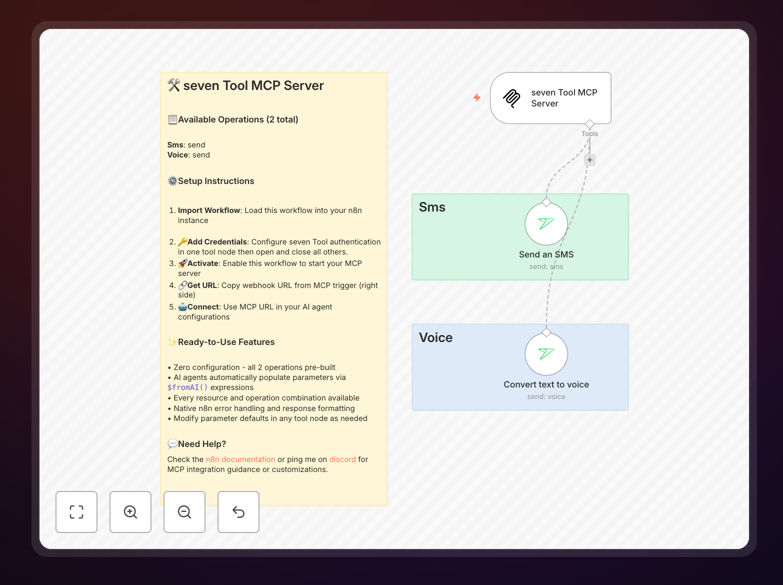
What This Workflow Does
This template solves the challenge of connecting AI agents to real-world communication APIs. Many businesses want their AI assistants (like Claude Desktop) to perform practical tasks such as sending SMS notifications or making voice calls, but integrating these capabilities requires technical API knowledge and custom coding.
The workflow creates a complete MCP (Model Context Protocol) server that exposes all seven Tool operations to AI agents. It acts as a secure bridge between your AI tools and the seven Tool API, handling authentication, parameter mapping, error handling, and response formatting automatically. With zero configuration needed, you get a production-ready server that makes your AI agents significantly more powerful.
Instead of building this integration from scratch—which could take days of development time—this template provides everything pre-built. You simply import it into n8n, activate the workflow, and connect your AI agents to the generated MCP URL. Within minutes, your AI can send SMS messages and convert text to voice calls through the seven Tool platform.
How It Works
The workflow follows a clean, logical structure that ensures reliable operation and easy maintenance.
Step 1: MCP Trigger Initialization
The workflow starts with an MCP Server Trigger node that creates a webhook endpoint. This endpoint serves as the connection point for AI agents. When activated, it generates a unique URL that AI tools like Claude Desktop can connect to, establishing the communication channel.
Step 2: Request Parsing and Validation
Incoming requests from AI agents are automatically parsed to extract operation parameters. The workflow validates that all required fields are present and properly formatted before proceeding to API calls. This validation layer prevents malformed requests from reaching the seven Tool API.
Step 3: Seven Tool API Integration
The core of the workflow contains pre-configured seven Tool nodes for both available operations: sending SMS messages and converting text to voice. These nodes use the official n8n integration with built-in error handling and retry logic for reliable API communication.
Step 4: Response Formatting and Return
After the seven Tool API processes the request, the workflow formats the response into a standardized structure that AI agents can easily understand. Success responses include all relevant data from the API, while error responses provide clear explanations that help AI agents understand what went wrong.
Who This Is For
This template is ideal for businesses and developers working with AI agents who need practical communication capabilities. Customer support teams can use it to let their AI assistants send follow-up SMS messages. Sales teams can enable AI-powered voice call scheduling and reminders. Developers building AI applications can quickly add SMS and voice functionality without writing API integration code.
Marketing agencies running automated campaigns will find this valuable for scaling communication efforts through AI coordination. IT departments managing internal tools can provide AI assistants with the ability to send system alerts via SMS. Essentially, any organization using AI tools that would benefit from real-world communication capabilities is the perfect user for this template.
Pro tip: Use this MCP server as a foundation for building more complex AI-agent workflows. Once you have the basic connection established, you can easily add additional nodes for logging, data transformation, or integration with other systems like your CRM or database.
What You'll Need
- A running n8n instance (cloud or self-hosted) where you can import and activate workflows.
- Seven Tool API credentials including your API key, which you'll add to the workflow nodes.
- An AI agent that supports MCP such as Claude Desktop, or any application that can make HTTP requests to the MCP server endpoint.
- Basic familiarity with n8n's interface for importing workflows and configuring node credentials.
- A web-accessible n8n instance if you want to connect external AI agents (not required for testing within n8n itself).
Quick Setup Guide
Getting your MCP server running takes just a few minutes with this straightforward process.
- Download and import the template JSON file into your n8n instance using the "Import from File" option in the workflow menu.
- Configure credentials by clicking on each seven Tool node and adding your API key from the seven Tool dashboard.
- Activate the workflow to start the MCP server. The trigger node will generate a webhook URL that serves as your MCP endpoint.
- Copy the MCP URL from the trigger node's settings or the workflow execution data.
- Connect your AI agent by adding the MCP URL to its configuration (in Claude Desktop, this is in the settings under "MCP Servers").
- Test the connection by asking your AI agent to send a test SMS or create a voice message through the seven Tool API.
Key Benefits
Save 10+ hours of development time by using this pre-built MCP server instead of coding the integration from scratch. The template handles all the complex parts of API communication, error handling, and protocol implementation.
Enable AI agents with real-world capabilities that dramatically increase their usefulness. Instead of being limited to text generation, your AI can now perform actual business operations like customer communication.
Reduce human intervention in routine communication tasks by allowing AI to handle SMS notifications, appointment reminders, and voice-based alerts automatically based on triggers from other systems.
Maintain security and control since the MCP server runs in your n8n environment with your credentials. You're not exposing API keys to third-party services, and you can audit all AI-agent activities through n8n's execution history.
Scale your AI operations efficiently with a robust foundation that handles multiple concurrent requests, includes built-in retry logic, and provides clear error messages back to AI agents for self-correction.