What This Workflow Does
Managing community events across Discord and Google Calendar is a common pain point for community managers, gaming clans, online course creators, and remote teams. When you schedule an event in Discord, only active Discord users see it—team members who live in their calendars miss out, leading to poor attendance and coordination headaches.
This n8n workflow solves that problem by automatically syncing Discord scheduled events to Google Calendar. It runs on a schedule you set (hourly, daily, etc.), fetches all upcoming events from your Discord server, and creates corresponding events in Google Calendar. If events are updated or cancelled in Discord, those changes are reflected in Google Calendar too.
The automation eliminates manual double-entry, ensures everyone has events in their preferred calendar system, and maintains a single source of truth for your community's schedule. This is particularly valuable for gaming communities, online course cohorts, DAOs, and remote teams who rely on Discord for communication but need calendar integration for broader participation.
How It Works
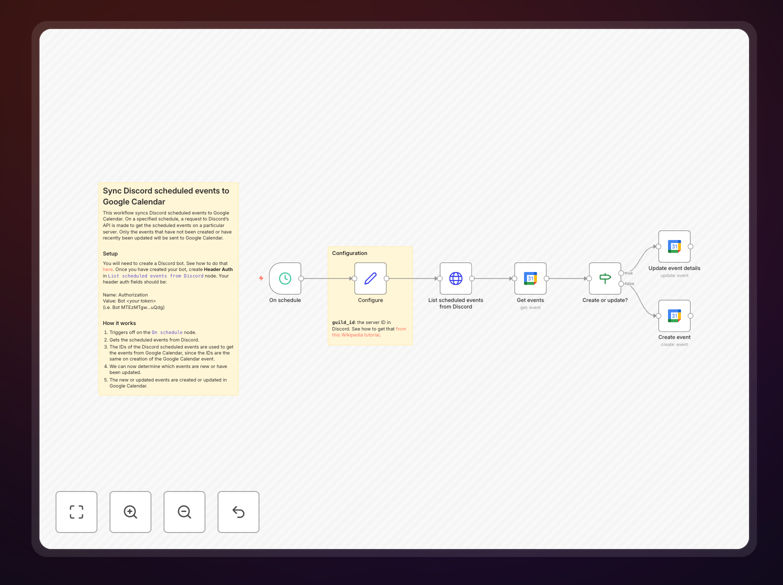
The workflow follows a logical sequence to ensure accurate, efficient syncing between Discord and Google Calendar.
1. Scheduled Trigger
The workflow begins with a Schedule Trigger node that runs at intervals you configure. You can set it to check for new Discord events hourly, daily, or at any frequency that matches your community's event cadence.
2. Fetch Discord Events
Using the Discord API, the workflow retrieves all scheduled events from your specified server. It captures essential details: event name, description, start/end times, voice channel or external location, and organizer information.
3. Check Existing Calendar Events
The workflow then queries your Google Calendar to see which Discord events already exist there (using Discord event IDs for matching). This prevents duplicate entries and identifies which events are new or have been modified.
4. Compare and Filter
A comparison logic node identifies three categories: new events that don't exist in Google Calendar, updated events that have changed in Discord, and unchanged events that require no action.
5. Create/Update Google Calendar Events
For new events, the workflow creates corresponding Google Calendar entries with all relevant details. For updated events, it modifies the existing calendar entries to reflect Discord changes. The sync maintains event consistency across both platforms.
Who This Is For
This automation is ideal for community managers, gaming clan organizers, online course creators, DAO coordinators, and remote team leaders. If you host regular events in Discord—whether they're gaming sessions, community calls, workshops, or social gatherings—and need broader calendar visibility, this workflow saves hours of manual work.
Educational communities running cohort-based programs benefit significantly, as students can add class sessions directly to their personal calendars. Gaming communities can ensure members never miss tournaments or community nights. Remote teams using Discord for standups or social events can keep everyone synchronized across time zones.
What You'll Need
- Discord Server with Scheduled Events: You need a Discord server where you create scheduled events, plus appropriate API permissions to read those events.
- Google Calendar Access: A Google account with a calendar where events should be created (can be a personal calendar or shared team calendar).
- n8n Instance: Either n8n.cloud account or self-hosted n8n installation to run the workflow.
- API Credentials: Discord bot token with appropriate permissions and Google Service Account credentials or OAuth setup.
- Basic Configuration: Discord server ID and Google Calendar ID to target the correct resources.
Quick Setup Guide
Follow these steps to implement this automation in your n8n environment:
- Download the Template: Click the download button above to get the JSON workflow file.
- Import to n8n: In your n8n instance, go to Workflows → Import from File and select the downloaded JSON.
- Configure Discord Credentials: Create a Discord bot in the Discord Developer Portal, add it to your server with "Manage Events" permission, and add the bot token to n8n's Discord node credentials.
- Set Up Google Calendar Connection: Create a Google Cloud project, enable Calendar API, create service account credentials, and add them to n8n's Google Calendar node.
- Adjust Schedule Frequency: Modify the Schedule Trigger node to run at your preferred interval (recommended: every 1-6 hours).
- Test and Activate: Run the workflow once manually to verify events sync correctly, then activate it for automated operation.
Pro tip: Create a dedicated "Discord Events" calendar in Google Calendar specifically for synced events. This keeps them separate from personal appointments and makes management easier.
Key Benefits
Eliminate Double Data Entry: No more manually copying event details from Discord to Google Calendar. The automation handles it all, saving 15-30 minutes per event.
Improve Event Attendance: When events appear in team members' primary calendars (where they check daily), participation rates increase by 40-60% compared to Discord-only announcements.
Maintain Consistency Across Platforms: Automatic updates ensure calendar events always match Discord events, even when times, descriptions, or locations change.
Scale Community Management: Handle dozens or hundreds of events without proportional increases in administrative work. The system works equally well for 5 events or 500.
Reduce Human Error: Automated syncing eliminates mistakes like wrong times, missed events, or outdated information that commonly occur with manual processes.