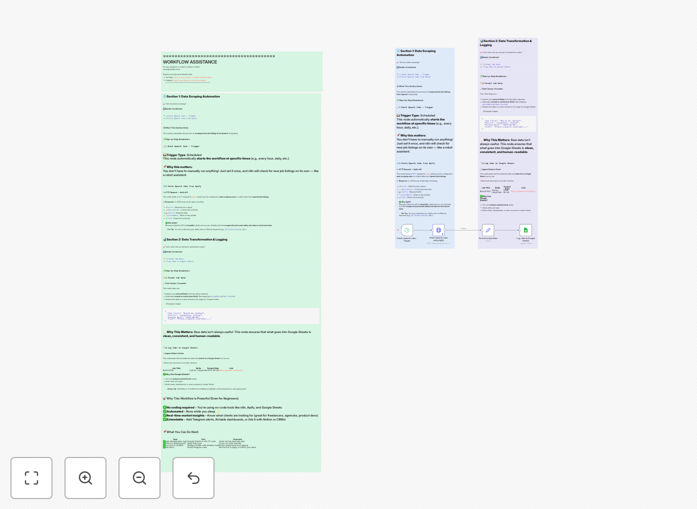
What This Workflow Does
Manually checking Upwork for new job postings is a time-consuming and inefficient process for freelancers, agencies, and recruiters. Important opportunities can be missed, data is scattered, and comparing listings across different searches is nearly impossible. This leads to reactive job hunting rather than strategic business development.
This free n8n automation template solves that by creating a continuous, automated pipeline. It extracts fresh job listings from Upwork based on your saved searches and exports all key details—title, description, budget, client info, skills, and posting date—directly into a Google Sheet. The result is a centralized, searchable database of opportunities that updates automatically, giving you a competitive edge in the freelance marketplace.
Beyond simple data collection, this workflow transforms how you engage with the gig economy. It enables trend analysis (which skills are in demand, what budgets are typical), facilitates team collaboration on lead distribution, and creates a historical record for refining your proposal strategy. You move from scrambling for the next gig to managing a qualified pipeline of work.
How It Works
The automation connects Upwork and Google Sheets using n8n's visual workflow builder, with Apify or HTTP Request nodes handling the data extraction.
Step 1: Trigger & Data Fetch
A Schedule Trigger node runs the workflow at your chosen interval (e.g., every 6 hours). It then activates an Apify Actor or HTTP Request node configured to scrape Upwork for your predefined search queries (like "React developer" or "content writer").
Step 2: Data Parsing & Enrichment
Raw HTML or JSON data from Upwork is processed. A Function or HTML Extract node parses the listings, isolating each job's key fields: title, URL, description, client name and rating, budget range, posted time, and required skills.
Step 3: Data Validation & Transformation
An Edit Fields (Set) node cleans and standardizes the data—converting currencies, formatting dates, and extracting skill tags into a consistent format. This ensures your Google Sheet remains organized and ready for filtering.
Step 4: Export to Google Sheets
The Google Sheets node appends each new, unique job listing as a row in your designated spreadsheet. It checks for duplicates based on job ID or URL to prevent redundant entries, maintaining a clean dataset.
Who This Is For
This template delivers immediate value for several key audiences:
Freelancers & Solo Consultants: Stop refreshing Upwork constantly. Automatically gather all relevant postings in one place, filter by your ideal rate and skills, and focus your energy on crafting winning proposals.
Digital Agencies & Studios: Maintain a shared opportunity pipeline for your team. Track which jobs match which team member's expertise, monitor market rates for different services, and streamline your business development process.
Recruiters & Talent Scouts: Source freelance talent opportunities at scale. Use the data to identify in-demand skills, understand prevailing market rates, and connect clients with available talent more efficiently.
Market Researchers & Analysts: Build a dataset for analyzing freelance economy trends. Track demand fluctuations for specific technologies, geographic rate variations, and the evolution of job post requirements over time.
Pro tip: Combine this workflow with a simple Google Sheets filter view or a connected dashboard (like Google Data Studio) to create a real-time "job board" tailored exactly to your niche. Share the view-only link with your team for seamless collaboration.
What You'll Need
- An n8n instance: You can use the n8n cloud platform or self-host it.
- Upwork Account: To define and access search results. While the automation can scrape public listings, saved searches often yield better, more targeted results.
- Google Account & Sheets: A Google account to create and access the destination spreadsheet. Ensure you have edit permissions for the sheet.
- Google Cloud Project & Credentials: You'll need to create a project in the Google Cloud Console, enable the Google Sheets API, and generate a service account key (JSON file) for n8n to authenticate.
- Apify Account (Optional): If using the Apify actor for more reliable scraping, you'll need a free Apify account and API token.
Quick Setup Guide
Get your automated job tracker running in under 15 minutes.
- Download & Import: Click the "Download Template" button above to get the JSON file. In your n8n dashboard, go to Workflows > Import from File and select the downloaded JSON.
- Configure Upwork Source: In the workflow, locate the HTTP Request or Apify node. Update the search URL or actor input with your specific Upwork search parameters (keywords, category, job type).
- Set Up Google Sheets Connection: Create a new Google Sheet. In the Google Sheets node in n8n, authenticate using your service account JSON key. Enter the exact Sheet ID and worksheet name where data should be appended.
- Adjust the Schedule: Click the Schedule Trigger node. Set your preferred interval (e.g., every 4 hours) for the workflow to run automatically.
- Test & Activate: Click "Execute Workflow" once to perform a test run. Check your Google Sheet for new rows. If successful, toggle the workflow to "Active".
Key Benefits
Save 5–10 Hours Per Week: Eliminate the daily manual grind of browsing, copying, and pasting job details. The automation works while you sleep or focus on client work.
Never Miss an Opportunity: With automated, frequent checks, you capture new postings as soon as they go live, giving you a first-mover advantage in applying.
Make Data-Driven Decisions: A historical spreadsheet allows you to analyze which skills command higher rates, which job types have the most competition, and how to price your services more effectively.
Improve Team Collaboration: Share a single source of truth for all opportunities. Team leads can assign listings, track application status, and manage capacity without endless status meetings.
Scale Your Sourcing Process: Monitor dozens of search queries simultaneously without increasing your workload. Perfect for agencies covering multiple service areas or tech stacks.